
End of Life Manager
End of life samples
End of Life samples are those whose Sample Status has been marked as one of the following:
- Sold
- Written-Off
- Gifted
- Returned to Vendor
- Sent to Archive
- Transferred to another department
These samples are considered End Of Life because, once marked with one of the statuses above, they're removed from the Inventory and can only be found in the Send-Out Report. In most cases, samples with these statuses are no longer in use.
Inventory samples will not appear in the End Of Life Manager.
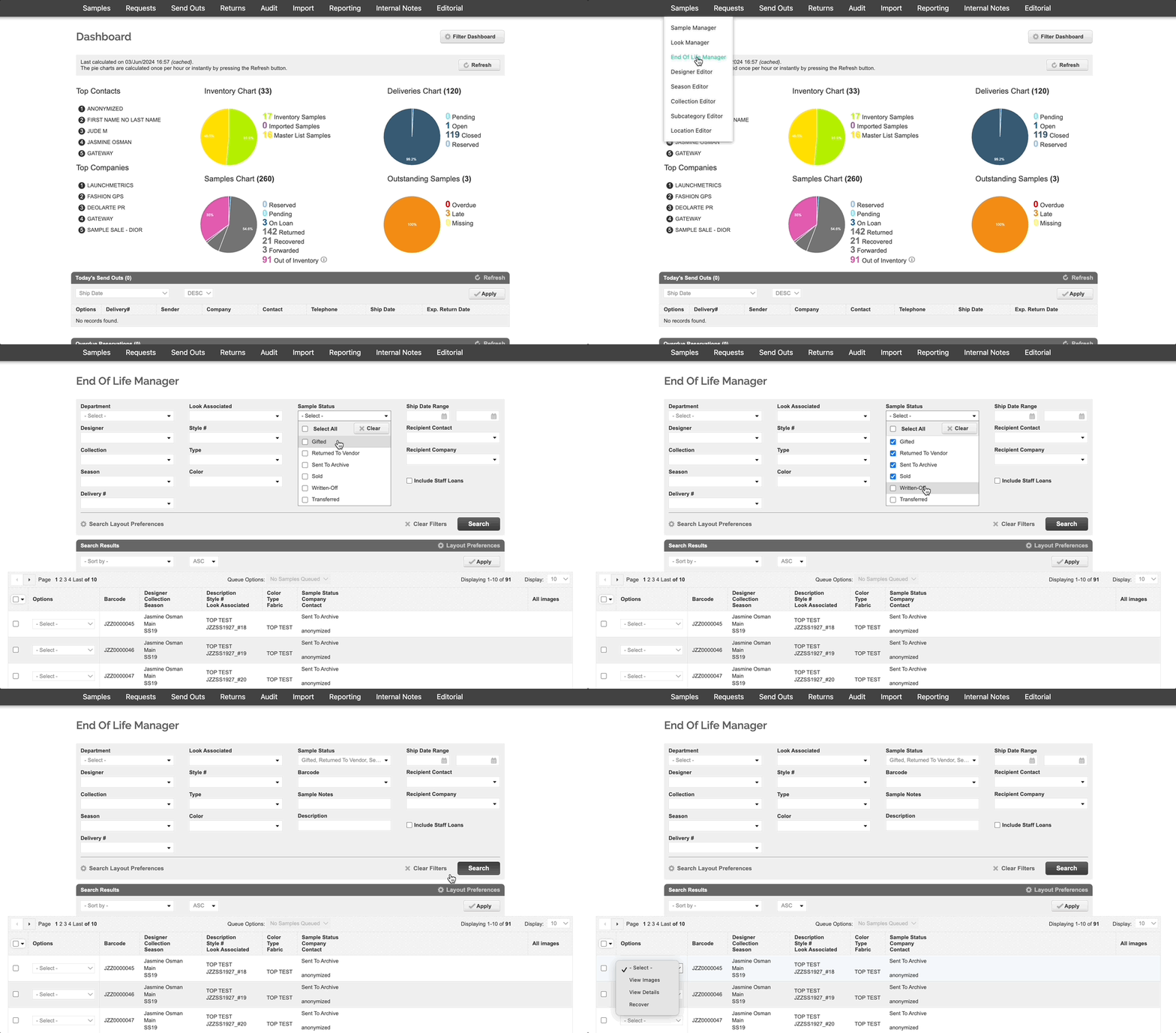
Any user can mark samples as:
- Sold
- Written-Off
- Gifted
Users who belong to the department that owns the sample can also mark samples as:
- Sold
- Written-Off
- Gifted
- Return to Vendor
- Sent to Archive
Browse End of life Samples
Using the End of Life Manager makes it easy to search for any of your End Of Life samples. You can search by any standard or custom fields, except prices.
- Manufacturer (Factory), Size Range, Misc, Workflow Status will only show used values at least once across accessible send-out history, pre-filtered by departments you have access to
You can View Details, View Images, and 'Recover' the samples from this manager.
The search layout preferences here match those in both the Send-Out Manager and Send-Out Report, making it easy to locate and export End Of Life samples. For example, you can use the Inventory Creation Date, Inventory Creation Method, or Send-Out Creation Date to review your end-of-life samples more effectively.
Recover a sample from the End of Life Manager
Follow these steps to recover a sample from the End Of Life Manager:
- Step 1: Go to the End of Life Manager by hovering over the Samples tab.
- Step 2: Use any of the relevant Search Layout Preferences to help find the samples you're trying to recover, such as Designer, Collection, Season, Barcode, Delivery #, and more. Use the Search Layout Preferences option to explore even more ways to search.
- Step 3: Find the sample(s) you'd like to recover. To recover an individual sample, use the Options dropdown and select “Recover”. To recover multiple samples at once, queue up the relevant samples, then use the Queue Options and select “Recover Queue”.
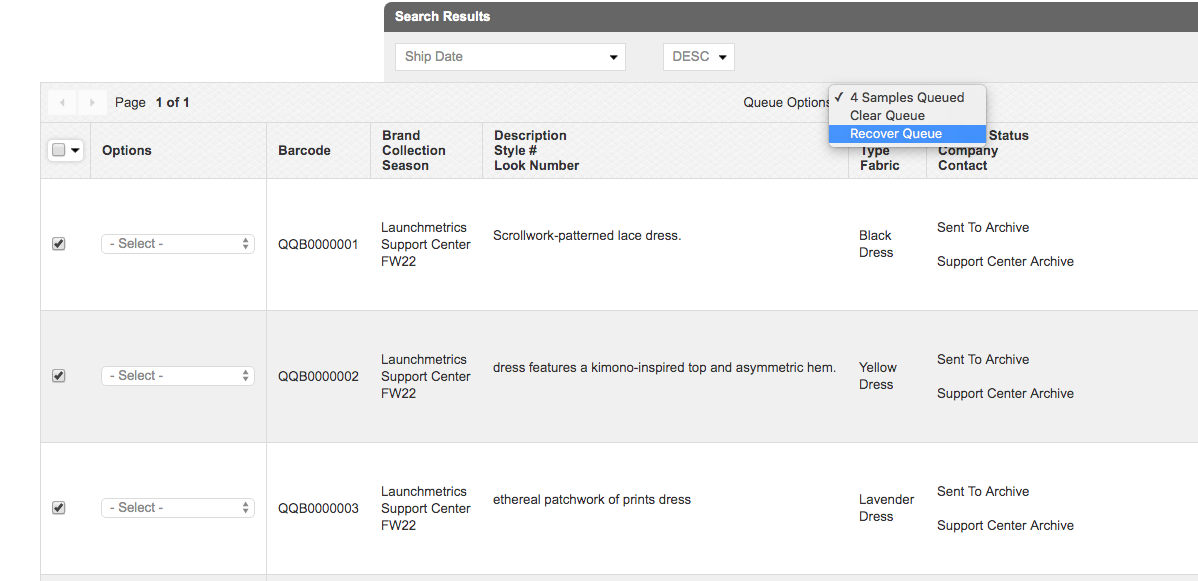
You can also quickly browse a list of samples using the Barcode field. If you don't see this field, add it to your selected headers by clicking "Search layout preferences."
- Select the “+=” icon above the Barcode field
- Paste your Samples into the input box
- Click “Apply and Search”
- Queue your Samples as references above
- Click “Recover Queue”

Click here for more information on all the various ways that "End of Life" samples can be recovered.