
04/09/2026 - Nested Channel Filter
The channel filter in Discover now displays channels in a nested structure, matching the familiar layout you already use in Insights.
✨ What's new?
When you open the channel filter in Discover, channels are now organized by type:
- Online — includes Online Media and Blogs
- Social — includes Twitter, YouTube, Instagram, Facebook, TikTok, Weibo, Douyin, Bilibili, RED, and WeChat
This replaces the previous flat list with a cleaner, grouped view.
⚙️ How it works
Click on a channel type to expand it and see its nested channels. Selecting a parent option (like "Online" or "Social") automatically selects all channels within that group. You can also select individual channels as before.
Search works the same way — typing in the filter will surface both parent categories and nested channels.
✅ Why it matters
- This brings consistency between Discover and Insights, so you get the same intuitive experience across both products. Grouping channels by type makes it faster to find what you're looking for and reduces visual clutter.
- It also speeds up filtering: selecting "Online" or "Social" now selects all channels in that category with a single click — no need to check each one individually.
💡 Good to know
- Saved filters, saved reports, URL parameters, and shared links continue to work as expected with the new structure.
- The legacy "Print" channel has been removed as a separate option — use the Print channel type instead.
04/02/2026 - Feed's Aggregated Metrics
You can now see the overall performance of your feed results at a glance — without downloading a report.
✨ What's new?
Three aggregated metrics are now displayed at the top of the article page, calculated in real time based on your active filters:
- Total MIV — the sum of MIV values across all results, aligned with your current search configuration (brand filters, industry filters, currency).
- Total Placements — the total number of placements returned by your search.
- Potential Reach — the combined reach across all unique sources in your results.
How it works
The metrics update automatically whenever you apply or change filters. They reflect exactly what is displayed in your feed — no manual calculation needed.
⚠️ important: MIV is calculated to match what you see on each placement: if you're filtering on one or more brands, the total reflects the MIV for those brands specifically. If no brand filter is active, the total covers all relevant MIV values across results.
Why it matters
Getting a sense of your feed's performance used to require exporting data to Excel or PowerPoint. These top-line metrics give you an immediate read on volume, value, and reach — directly within Discover.
💡 Good to know!
Print articles display one result per brand mention, while web and social articles display one result per article regardless of brand count. This means a single print article mentioning two brands appears as two results in the feed — which is why the total result count may differ from the placement count.
03/25/26 - [Print] Product name in Excel report
Product Name Now Available in Excel Exports (Print)
We’ve added a new data point to your Excel exports to provide more detailed insights into your print placements.
🎯 What’s New?
A new column called Product Name is now available in the raw Excel report for print placements.
- The column appears in the print section of the export
- It is populated when the product name is available for the placement
- It applies only to print content
🔎 Why This Matters
This update gives you more granular visibility into your print coverage by:
- Identifying specific products featured in placements
- Enhancing your reporting and analysis capabilities
- Providing richer data for internal reviews or client reporting
📌 Where to Find It
When you export your data to Excel:
- Look for the “Product Name” column in the print-related fields
- Values will appear automatically when available — no setup required
02/01/26 - Brand and Industry Filters
✨ New Filters: Brand & Industry
You can now explore and refine your feed results even further with two new filters: Brand and Industry.
These filters help you focus on the placements that matter most — whether you're tracking competitor activity, monitoring multi-brand portfolios, or diving into specific verticals like beauty, fashion, or wine & spirits.
🔍 What’s New?
✅ Brand Filter
- Select one or more tracked brands
- Use AND/OR logic to adjust results to your needs
- Filtered results update dynamically, including MIV calculations
- Perfect for comparing or isolating brand visibility
- 📈 This also impacts your exports and reports, displaying Brand-specific MIV

The list of tracked brands depends on your contract and environments setup. Please reach out to your CSM or support@launchmetrics.com in case of a missing one.
Want to know how we track brands with AI? Head over here.
✅ Industry Filter
- Find placements by industry category, including:
- Fashion
- Beauty
- Home & Design
- Eyewear
- Jewelry
- Watches
- Wine & Spirits
- Hospitality
- Others
- Filter based on context detected per placement
- Example: Dior + Beauty returns placements mentioning Dior in a beauty context

Here is a visualization of both filters working in tandem:

💾 Save Your Filters
Both Brand and Industry filters can be:
- Combined with other filters (channel type, geography, etc.)
- Saved as part of a Saved Filter configuration for easy reuse in reports
✅ Why This Matters
- 🎯 Target your Discover results with more precision
- 📈 Improve reporting accuracy by filtering brand content by industry context
- 🔁 Easily reuse configurations across teams and campaigns
⚙️ Feed Set Up: Collecting only the content of a Brand + Industry
- Previously, specific queries could be set up to track only the content of “Dior Beauty”, for instance
- Now, thanks to our AI-Powered Brand and Industry Detection, we can more accurately detect the Brands mentioned on every placement, and the industry mentioned for each Brand
- This can be used to set up any Discover Feed
- NEW! A combination of Industry filters can be applied. Dior + Fashion & Jewelry for instance in the GIF below. This will collect all of Dior's beauty mentions and all of Dior's jewelry mentions.

02/01/2026 - New Excel report
✨ 📥 Unified Excel Export: One File, One Tab, All Your Data
We’ve redesigned the Excel export experience in Discover to make reporting and analysis easier, faster, and cleaner — no more juggling multiple files or tabs.
🎯 What’s New?
Until now, exports were split by Focus (one file per focus) and Feeds (one tab per feed), which made it hard to consolidate and analyze data — especially with inconsistent columns or empty tabs.
We’ve simplified everything:
- ✅ You now get one Excel file
- ✅ With one tab
- ✅ Containing all placements from your selection
- ✅ With a harmonized column structure, covering all relevant data points across media types
📄 What’s in the New Export?
Your Excel file includes a comprehensive set of columns to cover all channel types — Online, Print, and Social. Some highlights:
- Common fields: Publication date, Brand, Industry, Voice Name & Type, MIV, Location, Tags, Topics
- Online-specific: Monthly Visitors, Link, Title
- Print-specific: Circulation, Print Clipping, Page Number, Product Type, Publisher
- Social-specific: Likes, Comments, Views, Followers, Engagement Rate, Content
👁️ Change in Data Structure: One Row per Brand
A new data point has been added to the Common Fields : the Brand.
This means that every placement will lead to one row in your file for each Brand that was selected for your report.
⚠️ Warning! This may lead to double counting of MIV, reach, or other metrics. Be careful to either:
- Filter on only one Brand to analyze this Brand specifically in your report; OR
- Remove duplicated rows before summing a value that should not be double counted; OR:
- Create a pivot table to group by Brand and Sum your values in this pivot table
Columns list per channel type
- Channel type - all
- Channel - all
- Publication date - all
- Integration date - all
- Location - all
- Voice type - all
- Voice Name - all
- Source Name - all
- Link - Online and Social
- Brand - all
- MIV - all
- Industry - all
- Language - all
- Title - Online and Print
- Content - Social
- Monthly visitors - Online
- Followers Social
- Circulation - Print
- Potential Reach
- Monthly Visits - Online
- Likes - Social
- Wows - Social
- Engagement value - Social
- Engagement rate - Social
- Views - Social
- Shares - Social
- Comments - Social
- Favourites - Social
- Print Clipping - Print
- Print Cover - Print
- Publisher - Print
- Page number - Print
- Page Occupation - Print
- Holding - Print
- Product Type - Print
- Category - Print
- Sub-category - Print
- Placement type - Print
- Stylist - Print
- Photographer - Print
- Frequency - Print
- Issue number - Print
- Event - Print
- Topic - all
- Tag - all
✅ Why You’ll Love It
- 📊 One file, no cleanup
- 🔍 Consistent structure across all media types
- 📦 All your data in one place — up to 100,000 placements per export
- 📈 Ready for reporting, analysis, and sharing without extra effort
02/01/2026 - Galleries / Slideshows removal
✨ Slideshows/Galleries in the Main Article
To reduce duplication and improve feed quality, slideshow/gallery content will no longer appear as separate documents. Instead, gallery content is now merged into the main online article, ensuring brand presence is still reflected—without creating multiple duplicate entries in feeds, newsletters, or reports. MIV is recalculated at the article level, taking into account brand presence across one or multiple galleries within the same article.
What is this?
On January 1st, 2026, we released a new unified gallery format for online documents.
This replaces the previous format, where a separate document was generated for each image or slide in a gallery or slideshow.
This led to one line in your feeds for each image or slide, AND one line for the main article.

With the new format, a single document now contains the full article and all associated gallery elements.

Why did we make this change?
The previous approach created several issues:
- Artificially inflated document counts due to one document per gallery image
- Duplicate entries in feeds, where a single article appeared multiple times
- False positives caused by identical gallery titles, leading to unrelated gallery documents being associated with brands
- Artificially inflated MIV, as each gallery element generated its own MIV value that was summed at the article level
With the new unified format, document counts and MIV are both more accurate and better aligned with how our customers expect articles and galleries to be represented.
What changes for you?
Instead of having a parent document (main article) plus multiple gallery documents (images or slideshows), there is now one single document containing all information.
No data is lost — content is simply aggregated
All gallery images, headlines, and captions remain monitored and indexed
Feeds are cleaner, with one document per article.
How does this affect search and indexing?
Articles remain fully searchable.
Keywords found in:
Gallery headlines
Image titles
Image captions
are indexed as part of the article content. Articles can still be found regardless of where keywords appear within the gallery or main body.
How does this affect Media Impact Value™ (MIV®)?
MIV is now calculated once per article, taking into account:
- The full article content
- All gallery images and captions
Instead of calculating an MIV for the parent article and separate MIV values for each gallery element, a single MIV value is computed for the entire article.
This may result in a slightly lower MIV compared to the previous method, but it is significantly more accurate and representative of real impact.
Timeline & historical data updates
New documents
Starting January 1st, 2026, all newly created documents use the unified gallery format.
Older documents
Starting on February 1st, 2026, we will progressively recompute older documents, starting with 2025 and moving backwards year to year, to the new format, so the historical data will be consistent.
FAQ
Will I lose any data or images?
No. All gallery content continues to be monitored, indexed, and searchable. It is simply aggregated into a single document.
Why did my MIV decrease?
Previously, MIV was artificially inflated due to multiple gallery documents. The new calculation is more accurate and better reflects the true impact of an article.
Should I update or re-run reports?
We recommend waiting until the recomputation process is complete before generating reports for 2024 and 2025.
If previously I could see a single “child” placement without its “parent” (for instance if my Brand was mentioned in a single image of a slideshow but not in the body of the main article), what will I now see?
You will still see a single placement, but it will be the parent article (containing all of its slideshows, including the one where your brand was mentioned). Since your brand was mentioned only once, and only in a slideshow image, rather than in the main text or title of the article, you MIV will be quite low. But it will still be much higher than before when your only MIV was that of the slideshow image alone!
If you have questions about how this change affects your data or reporting, please reach out to your Launchmetrics CSM or support@launchmetrics.com
02/01/2026 - Sorting by MIV improvements
✅ Improved sorting with MIV
📌 What’s the update?
We’ve fixed and improved how placements are sorted by Media Impact Value (MIV) in Discover.
In some cases, especially when multiple brands were involved or none were selected, the sorting didn't reflect the most relevant placements. That’s now fixed.
🔧 How it works now:
-
When you filter by one or more brands:
Placements will be sorted based on the MIV specific to those selected brands. -
When no brand is selected:
Discover will use a smarter approach to highlight the highest MIV placements among all the brands your organization follows.
This smarter sorting also applies to PowerPoint exports and Online reports, so your data stays aligned across views and formats.

✅ Why it matters
- 🎯 More accurate MIV-based sorting when analyzing specific brands
- 🔍 Cleaner prioritization in brand monitoring workflows
- 📈 Stronger alignment with MIV logic used in reports and dashboards
If you’re unsure how to leverage branded MIV or need help configuring your feeds, your Customer Success Manager can guide you.
02/01/2026 - Manual insertion improvements
✨ New enrichments on manual insertion
You can now include key metadata — like Brand, Industry, and Voice — when inserting placements manually in Discover. This ensures your inserted content is searchable, filterable, and reportable, just like placements brought in automatically.
🎯 Why This Matters
Previously, placements added manually (via the interface or Excel upload) could not include core metadata like Brand or Industry. As a result:
- These placements wouldn’t show up when applying filters by brand, voice, or industry
- They couldn’t be surfaced reliably in reports
- Their visibility and usefulness were limited across the platform
With this release, you can now tag your manually inserted placements with the same metadata used across Discover.
✅ What’s New
1. Manual Insertion Form (Single Placement)
When adding a placement manually, you can now include:
- Brand (from your tenant’s brand list)
- Industry (from a predefined list)
- Voice Name
All dropdowns are searchable and available for all document types — Print, Online, and Social.

2. Bulk Excel Uploads
The bulk upload template now supports:
brandindustry
📌 Make sure the values match the expected formats. You'll be able to pick them through dropdown selector, to avoid any typo.
🔎 What This Enables
By adding metadata when inserting content, your placements:
- Can be filtered in feeds using Brand, Industry, or Voice
- Are included in reports like any other placement
- Offer more accurate tracking of manually curated or recovered content
Discover Release / October 27th, 2025
🌟 Set a Default Saved Filter in Discover
Tired of reapplying the same filters every time you open Discover?
Now you can set a default saved filter, so your preferred search configuration loads automatically — every time.
🎯 Why This Matters
Many users work with the same filters daily — by brand, region, campaign, or team. Having to reselect filters each time can slow you down.
This update eliminates that step, helping you get to your placements faster and stay focused on what matters.
🛠️ How It Works
You can now choose any of your saved filters to be your default.
✅ To Set a Default Filter:
- Open the Saved Filters dropdown in Discover
- Click the “⋮” (three dots) next to the filter you want to use by default
- Select “Set as default”
Now, each time you open Discover, this filter will be applied automatically.

🔄 To Change or Remove Your Default:
- If you choose “Set as default” on another filter, it will replace the previous one.
- If a filter is already set as default, you’ll see “Remove as default” in the menu.
Selecting this will clear the default, and Discover will open with no saved filter applied.
🔐 What Happens If...
- The default filter is deleted → Discover will open with no filters
- The default filter is made private and you’re not the owner → It won’t be visible nor load anymore
In either case, the default is cleared silently so you’re never blocked from using Discover.
📝 Summary
- 🚀 Set your most-used filter to load automatically
- 🔁 Easily update or remove your default anytime
- 💼 Keep your searches consistent and efficient
Need help setting your default filter? Reach out to your Customer Success Manager
Discover Release / September 11th, 2025
✨ A Cleaner, Smarter Filter Bar in Discover
We’ve redesigned the filter bar in Discover to help you focus on what matters most — your placements — while keeping your workspace clean, customizable, and efficient.
🎯 Why This Update?
Until now, the filter bar displayed all available filters, whether you were using them or not.
This led to:
- Cluttered pages
- Unnecessary vertical scrolling
- A crowded experience when managing many filters
🧩 What’s New?
The filter bar is now horizontal and customizable, giving you full control over which filters you see.
Here’s how it works:
- The filter bar is now a single horizontal row at the top of the feed.
- If many filters are selected, you can scroll horizontally through them.
- A new “+ Add Filters” button lets you choose which filters to show.
- Once selected, your filters appear in the bar, ready for use.
- Removed filters are simply hidden — not deleted — so you can bring them back anytime

✅ Why You’ll Love It
- 🧼 Declutters your screen so you can focus on your placements
- 🖥️ More room for content, less space taken by unused filters
- 🧩 Customizable to your workflow — use only the filters you need
- 🔄 Easier to navigate, even with a large number of filters
Discover Release / September 2nd, 2025
🔗 Shareable Short URLs for Filtered Views in Discover
You can now easily share filtered views from the Discover feed results page — without worrying about long URLs or platform limitations.
🎯 Why This Matters
Previously, filtered views added all filter values directly into the page URL. While this let you reload the page with filters intact, it often created very long URLs — which could break when shared or refreshed.
This led to:
- Errors when refreshing or reopening links
- Broken URLs in email, or browsers
- Difficulty collaborating with others on the same filtered views
💡 What’s New?
We’ve introduced a URL shortener to simplify sharing filtered views.
With the new Share button on the feed results page, you can:
- Share the current view
- Instantly generate a short URL
- Share that link with anyone — even across tenants
🔗 Example short link:https://discover.launchmetrics.com/link/58893b7ef47254c2676b84d6c9b21cb
Discover Release / August 26th, 2025
✅ Improved MIV Accuracy in PowerPoint Reports
You can now generate PowerPoint reports in Discover that display more accurate MIV values — fully aligned with the configuration of your feeds.
🧩 What’s Changed?
In the past, all placements in PowerPoint exports used a single, default Media Impact Value (MIV), regardless of how your feeds were set up.
- Now, Discover applies the same MIV logic from your feeds to your reports, meaning:
- Each placement’s MIV in the report matches the configuration of the feed it came from.
- If your feeds are tailored to reflect specific brand settings, that MIV is used.
- If a feed isn’t customized, the standard MIV continues to apply.
This ensures your exported reports reflect the same data logic used in your dashboards, making them easier to interpret and more consistent with your Discover environment.
📁 What If My Report Includes Multiple Feeds?
That’s fully supported. If your PowerPoint report includes placements from multiple feeds — even those linked to different brands — Discover will display the appropriate MIV for each placement based on its original feed.
- There is no need to manually adjust anything:
- Each feed’s logic is respected
- Each placement is assigned the correct MIV
- Reports now handle multi-feed, multi-brand exports accurately
📌 What You’ll See
- When opening a PowerPoint report, you’ll notice:
- MIV values are consistent with what you see in Discover
- If multiple feeds are used, placements may show different MIV logic depending on their origin
No setup required — the logic is automatically applied when you generate the report
🤔 Want to Check or Adjust Your Feed Setup?
You can verify which brand or configuration a feed is linked to by:
- Visiting the Manage My Feeds page
- Looking at the feed details or asking your Customer Success Manager
If you need to update your configuration or have questions about how this logic works across your reports, we’re here to help.
Discover Release / July 30th, 2025
✨ Keep Your Newsletters Clean: Filter Out Old Placements Using Publication Date
You now have more control over which placements appear in your newsletters — helping you avoid surprises and ensure the content shared with your teams is always fresh and relevant.
🎯 Why This Matters
Sometimes, older placements can appear in newsletters because they were only recently added to your feed — even though their actual publication date was weeks or months ago.
This can happen when placements are:
- Recovered manually
- Added later due to system updates or feed configuration changes
- Manually inserted or edited
- Processed late by our systems
Even though these articles are old, they can still appear in your newsletter simply because they were recently integrated — leading to confusion and frustration.
💡 What’s New?
You can now define a publication date offset when setting up your newsletter. This lets you decide how far back a placement’s publication (or issue) date can go in order to be included.
Here’s what this means:
- For online and social placements, we look at the publication date.
- For print placements, we use the issue date.
- If a placement’s date is older than the allowed offset, it will be excluded from the newsletter — even if it was just added to the feed.
⚙️ How to Use It
When creating or editing your newsletter settings in Discover:
- Go to the Newsletter setup panel.
- Locate the new “Publication offset” setting.
- Select how many days back you want to include placements from — for example, 7, 14, or 30 days.
- Save your changes.
This feature uses an autocomplete dropdown, so it’s quick and easy to adjust.
📝 Note: If no offset is set, Discover will continue using the integration date, meaning placements added late (even if old) may still appear.
✅ Benefits
- 🧼 No more outdated content in your newsletters
- 🧭 Keep your teams aligned with timely and relevant coverage
- ✉️ Improve trust in your newsletter as a reliable source of brand visibility updates
Need help configuring your newsletter or choosing the right offset?
Your Customer Success Manager is happy to assist — or feel free to reach out via the support center.
Discover Release / June 16th, 2025
✨ Voices in Discover
We’re making it easier for you to explore feed results with better filtering and improved precision — thanks to the new Voice filters!
🎯 What’s New?
Discover now lets you filter placements by:
- Voice Type: Choose from four categories — Media, Influencers, Celebrities, and Owned/Partners.
- Voice Name: Search for specific voice names and select exactly what you need.
This ensures a more streamlined and precise way to browse your coverage, harmonizing how you work across Discover and Insights.
⚙️ How It Works
- Click the Voice Type or Voice Name filter buttons in your feed.
- For Voice Type, a checkbox menu opens. Select one or more types, and click Apply to filter results.
- For Voice Name, a search bar helps you find voices quickly — even in a massive list! Type at least three characters to see suggested results, then select and click Apply.
The number of selected items appears in the filter header, so you always know what’s active.

📊 Data & Reports
- In the feed, media and profile names are now replaced by the voice’s name.
- Voice name and type have also been added as new columns in the data report, for better analysis and insights.
💡 Why This Matters
- More precision: Filter by exactly what matters to you
- Improved workflows: Consistent filtering across Discover and Insights
- Better data exports: Voice info now included in your reports
Discover Release / April 29th, 2025
✨ New Filtering Options for Topics & Tags
You now have even more control over how you filter placements — helping you tailor your feed results and reports with greater precision.
🎯 What’s New?
We’ve introduced Boolean filtering logic to the Topics & Tags filter.
You can now decide exactly how selected tags should impact your results:
-
Includes any of selected (default)
See results that match at least one selected tag
-
Includes all of selected
See results that match all selected tags
-
Excludes any of selected
Hide results that match at least one selected tag
-
Excludes all of selected
Hide results that match all selected tags
This flexibility allows you to refine your results with much greater accuracy — whether you're building reports or browsing your feed.
🧪 How It Works
- Open the Topics & Tags filter in the feed.
- You’ll see a logic selector just below the search bar:
(Any / All / None) - Choose your tags, select the logic you want, and click Apply.
- Your results will update based on your chosen logic.
(Note: Changes are not applied automatically — you’ll need to click Apply to update your results.)

💡 Why This Matters
More precision in your feed views and reports
Better control over what appears in your analysis
Smarter reporting for campaign measurement and decision-making
Whether you need broader visibility or highly specific filtering, you can now easily adapt your workflow to your needs.
📎 Additional Notes
By default, the filter uses Includes any of selected.
This update replaces the older AND/OR filtering on saved reports — all saved reports have been migrated to use the new system.
The filter logic will apply consistently across Feed results and Report Manager.
Discover Release / 2025, April 1st
✅ Smarter Tagging & Automation Workflow
We’ve redesigned how tags are applied and automated to offer a clearer, more reliable, and guided experience.
This update introduces confirmation steps, better feedback, and smart validations — all aimed at reducing errors and giving you more control when managing tags at scale.
Smarter Tagging & Automation Workflow
We’ve updated the tagging and automation experience to make it clearer, more accurate, and error-proof. Here’s what’s new:
🔘 “Tag All Found” Button
When you click Tag All Found, a confirmation modal will appear to help you review before applying tags.
What you’ll see:
- The total number of placements that will be tagged.
- Cancel or Tag options to confirm or exit.
- A toast notification to confirm success or flag any errors.
👉 Tagging is only applied once confirmed through the modal.
⚙️ Tag Automation Enhancements
Automating tags now includes a helpful summary and validation to prevent accidental errors.
On clicking “Automate Tag”:
- A modal will open showing the average number of placements per day (based on your date filters).
- You must confirm via the modal before proceeding.
- If a tag automation with the same filters & search already exists, a warning modal will appear
👀 You’ll receive a success/error toast after confirmation.
🚫 When Tag Automation Is Disabled
To avoid confusion, the Automate Tag button will now be disabled in these cases:
-
No tags selected
-
Multiple tags selected
Automations support only one tag at a time
-
No filters or search query selected
Automation requires at least one filter or a search query
-
The selected tag is already automated and hasn’t been modified
There’s no need to re-apply an identical automation
💡 Note
- Automations with duplicate criteria (same filters and search) across any tag will be blocked with a modal alert.
- Tooltips and modals guide you to ensure successful automation setup.
- This feature is part of our ongoing improvements to provide precision and control in content tagging.
Discover Release / 2025, February 4th
✅ Date preset improvements
We’ve updated the date preset options to the following:
- Current: Month / Quarter / Year
- Previous: Month / Quarter / Year
By default, the preset is set to the current month. This will allow you to quickly select relevant periods for your reports and newsletters

✅ Focus Selection Update
Focuses that don’t contain any feeds can no longer be selected on the Feeds page. If a focus has no feeds, a clear message will explain why, helping to prevent confusion when selecting data for reports or newsletters.

Discover Release / 2024, November 29th
✅ Introducing Feed Recovery Limit for Optimal Performance
We are excited to announce an important update to our Feed Recovery feature, designed to enhance system performance and provide you with a smoother experience!
From now on, feed recovery will not function if a feed's definition encompasses more than 50,000 placements in the last 7 days. However, you can still save and activate such feeds without any issues.
This limit has been implemented to ensure that our platform continues to operate with optimal performance, especially when handling large volumes of data.
Discover Release / 2024, April
✅ Automatic Tags & tagging usability improvements
We're thrilled to share a series of improvements to tagging that will help you qualify your content and create relevant reports in minutes, not days! Easily create automatic tags to qualify your key content as soon as it is collected in your Feeds, and quickly apply manual ones to more placements at once in an overall improved tagging experience.
Check out the full guide to learn more about how our new tagging features work and some of the main use cases you will be able to cover with them!
Discover Release / 2023, September
✅ New filtering experience, bulk insert for online content, and search improvements
✅ New filtering experience in Discover, including new filters for Origin and Placement Type
Filter the placements you need, faster and with less effort. If you are already using the filter in the Feeds page, and specially if you are also using Launchmetrics' Insights to benchmark your brand impact, the new filters will make your experience better: They're horizontal, more precise and include new filters to help you find exactly what you need!
Visual Improvements
Horizontal filters are more consistent with the user experience you have in Insights, so working with both apps open is now easier than ever. If you work in a Tenant that has a lot of feeds, or a lot of tags, say goodbye to scrolling up and down to find what you need!
This design also makes it easier to see what you have selected at a glance, and by optimizing this layout we maximized the available space dedicated to what really matters: placements are, more than ever, at the center in Discover.
Search & Exclude
The improvements to our filters are far from just cosmetic. All filters now include new capabilities, that will help you find just what you need. In most filters you will see a Search box at the top of the options where you can enter text to find matching filters. At the bottom of the field list, on the left size, you now have an Exclude toggle. You can combine first level and second level exclusions, and activating the option will exclude from the results any placements that match the active filters.
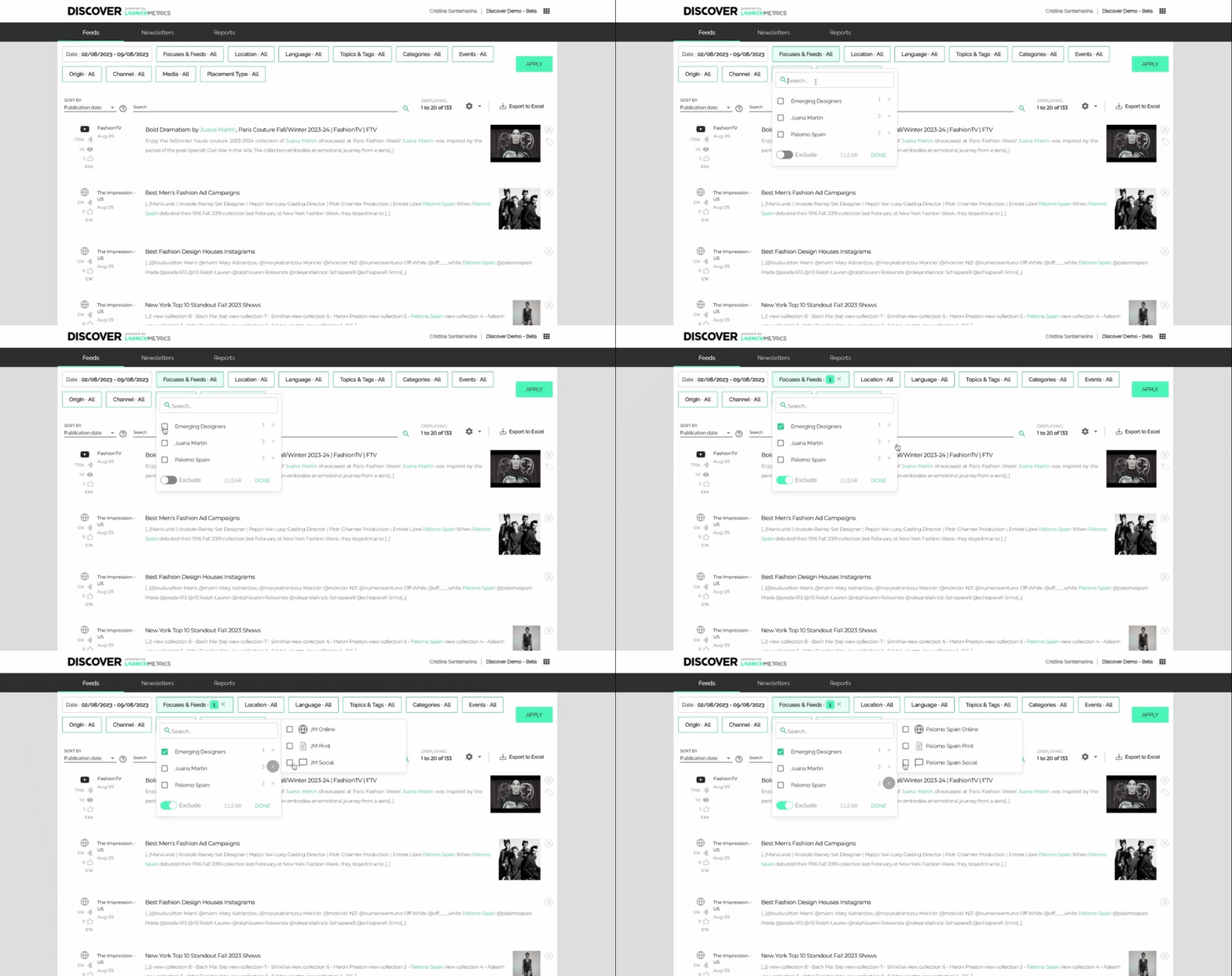
New Filters
Period
|
✅ Print ✅ Web ✅ Social |
❌ Search ❌ Exclude |
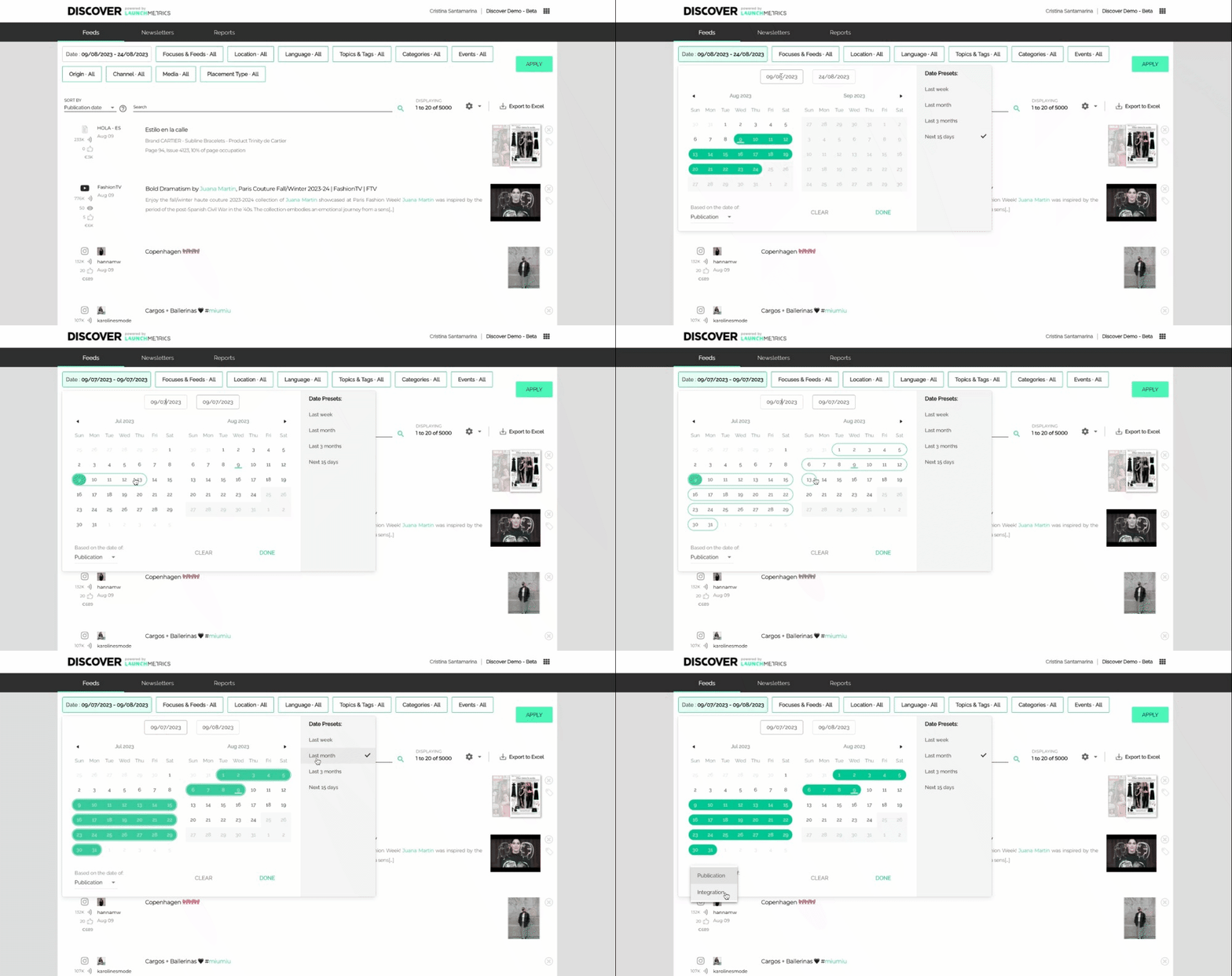
Users can select the start and end dates using the calendar or type the dates in the free text fields. Now it's easier than ever to go back in the past with fewer clicks, and more precision!
Both Publication and Integration dates continue to be available. While most of our users are interested in the Publication date, when a placement is shared (or programmed to share) with the public, Integration dates are relevant if you're interested in placements that were integrated to the Launchmetrics database on a specific period.
Predefined periods continue to be available and with no changes to their behaviour:
- Last week looks into the past 7 days
- Last month looks into the past 30 days
- Last 3 months looks into the past 90 days
- Next 15 days looks for publications that are already available in Launchmetrics but have not been published or released to the general public yet.
Focuses & Feeds
|
✅ Print ✅ Web ✅ Social |
✅ Search ✅ Exclude |
Focuses and Feeds are now displayed in two levels, to save you some scrolling and make it easier to find what you are looking for in Tenants with a lot of Feeds.
There are no changes to Focus and Feed visibility: Managers continue to see all Focuses in the Tenant, and users with other roles see the Focuses they have been invited to.
Inside each Focus, the list of Feeds keeps the icon that indicates the Channel Type, so that you can find the print, web or social Feeds you are looking for easily if you are not including this detail in the Feed name.
DeleteLocation
|
✅ Print ✅ Web ✅ Social |
✅ Search ✅ Exclude |
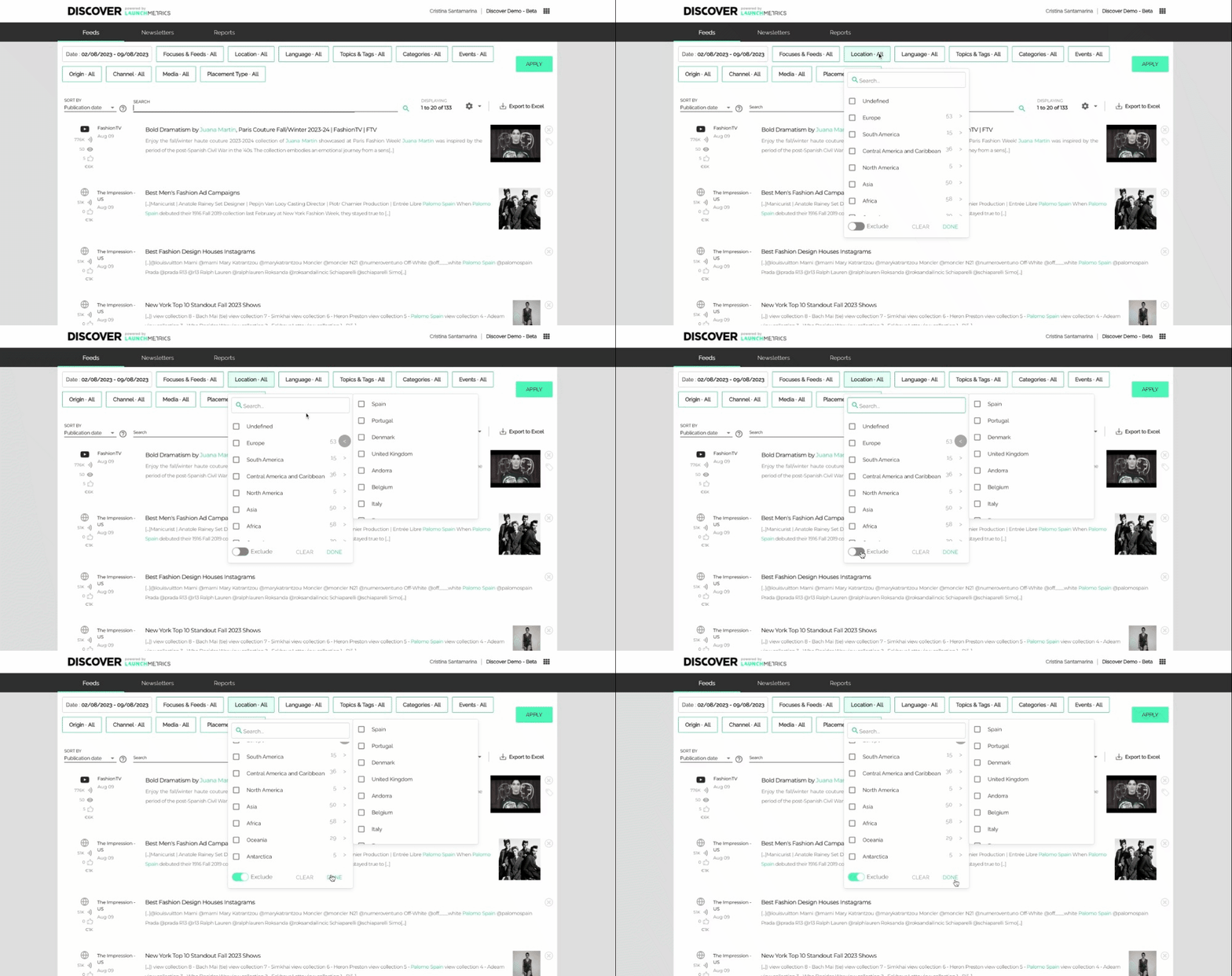
Regions and Locations are now available in two levels. At the top of the Regions list, you can use Undefined to select all placements published by a source for which a Location is not unknown.
DeleteLanguage
|
✅ Print ✅ Web ✅ Social |
✅ Search ✅ Exclude |
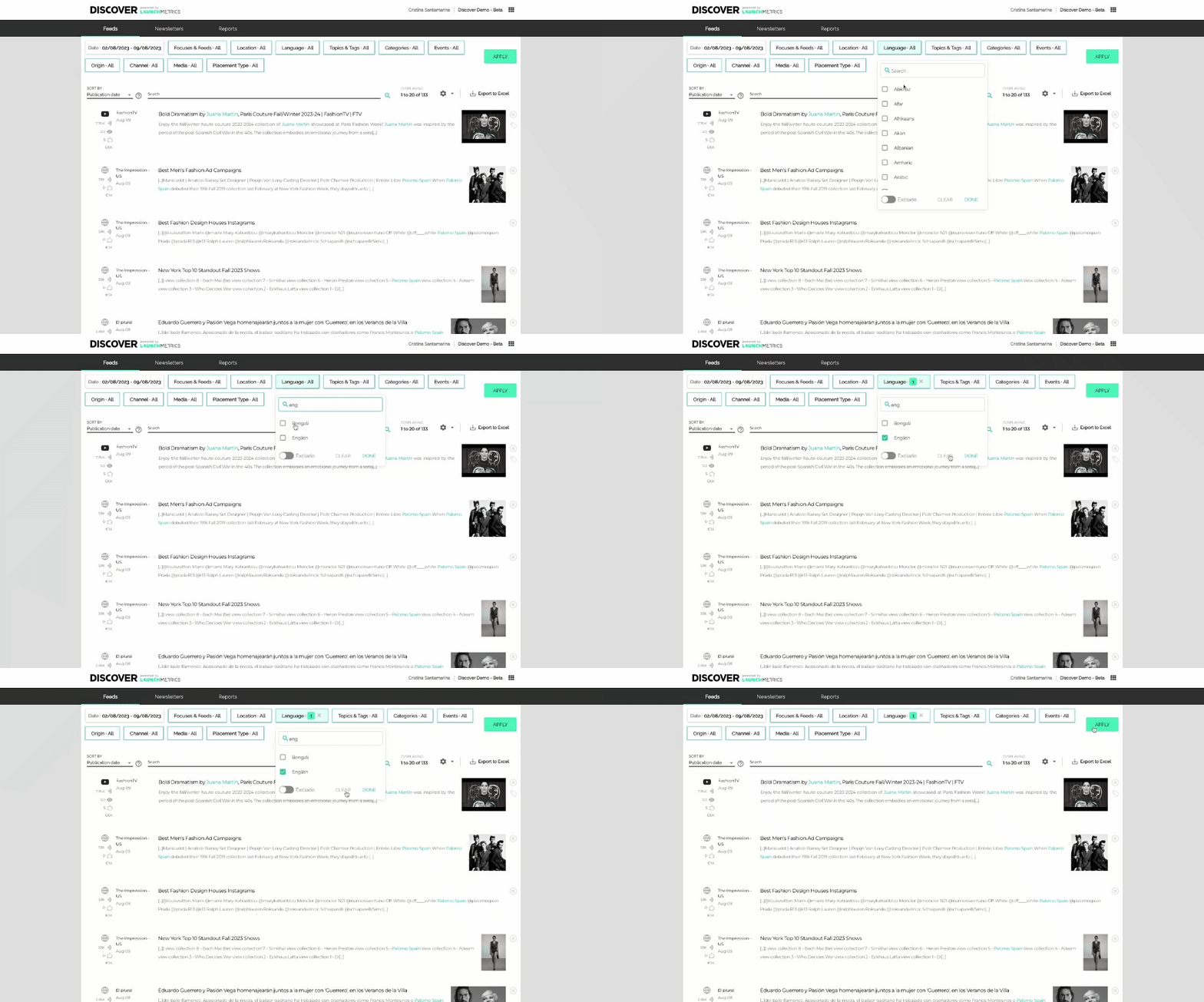
In the new Languages filter you will see a list of all available languages, sorted alphabetically. At the top of the list the option “Undefined” applies to placements published by Media for which no Location was defined.
DeleteTopics & Tags
|
✅ Print ✅ Web ✅ Social |
✅ Search ✅ Exclude |
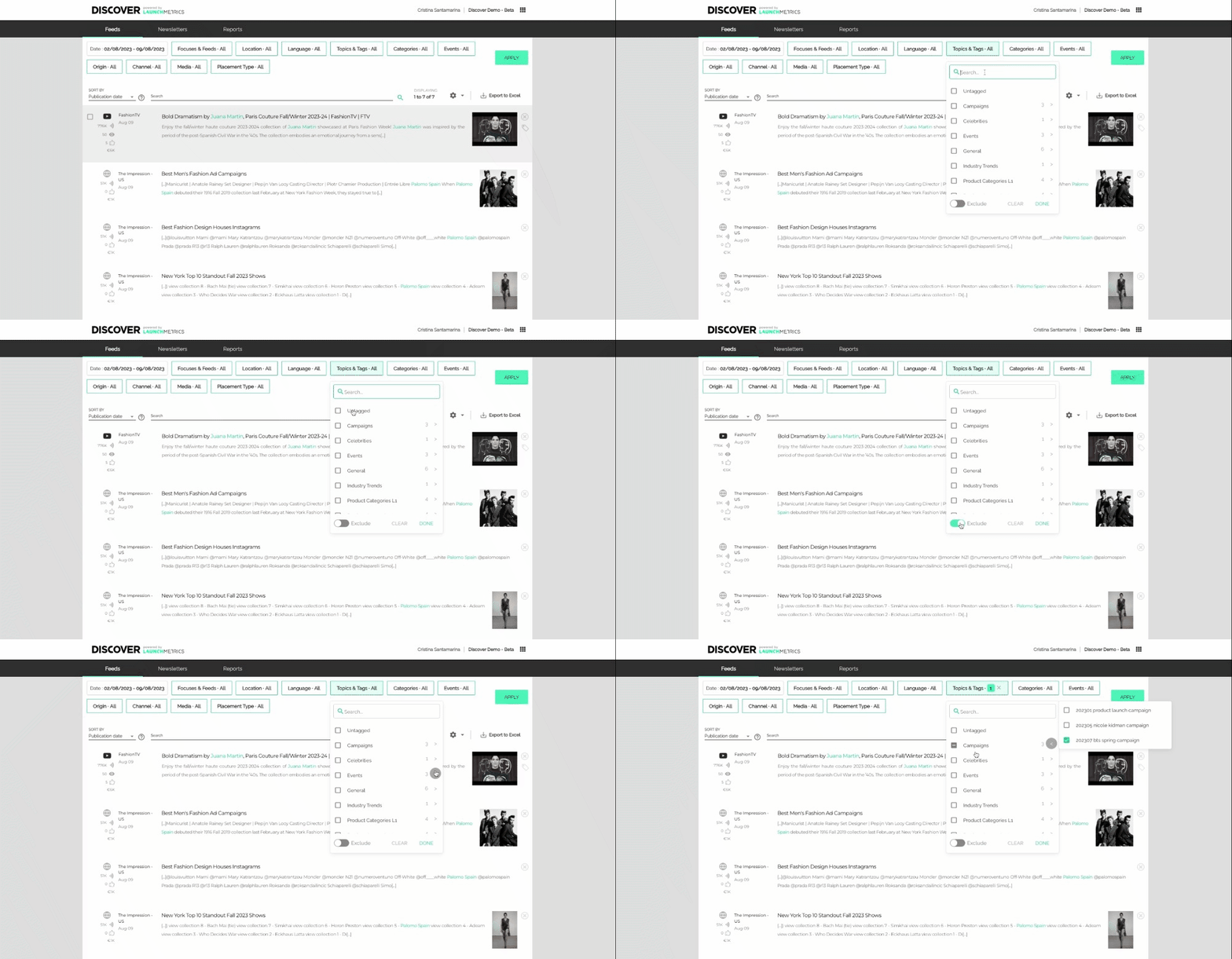
Topics for Tags manually added by users in a Tenant, or entered by our Data Services team, are now displayed in two levels, saving you some scrolling and making it easier to find what you are looking for if you use tags intensively.
Inside each Topic, the list of all Tags is listed so that you can find the placements you are looking for.
If you need to find all the placements that have no tag applied, previously available under the untagged option, you can now select all the Topics, and use the exclude option!
DeleteCategories
|
✅ Print ❌ Web ❌ Social |
✅ Search ✅ Exclude |
- See a list of all 1st Level Categories used across Launchmetrics
- See the 2nd Level Categories inside each 1st Level Category
Events
|
✅ Print ❌ Web ❌ Social |
✅ Search ✅ Exclude |
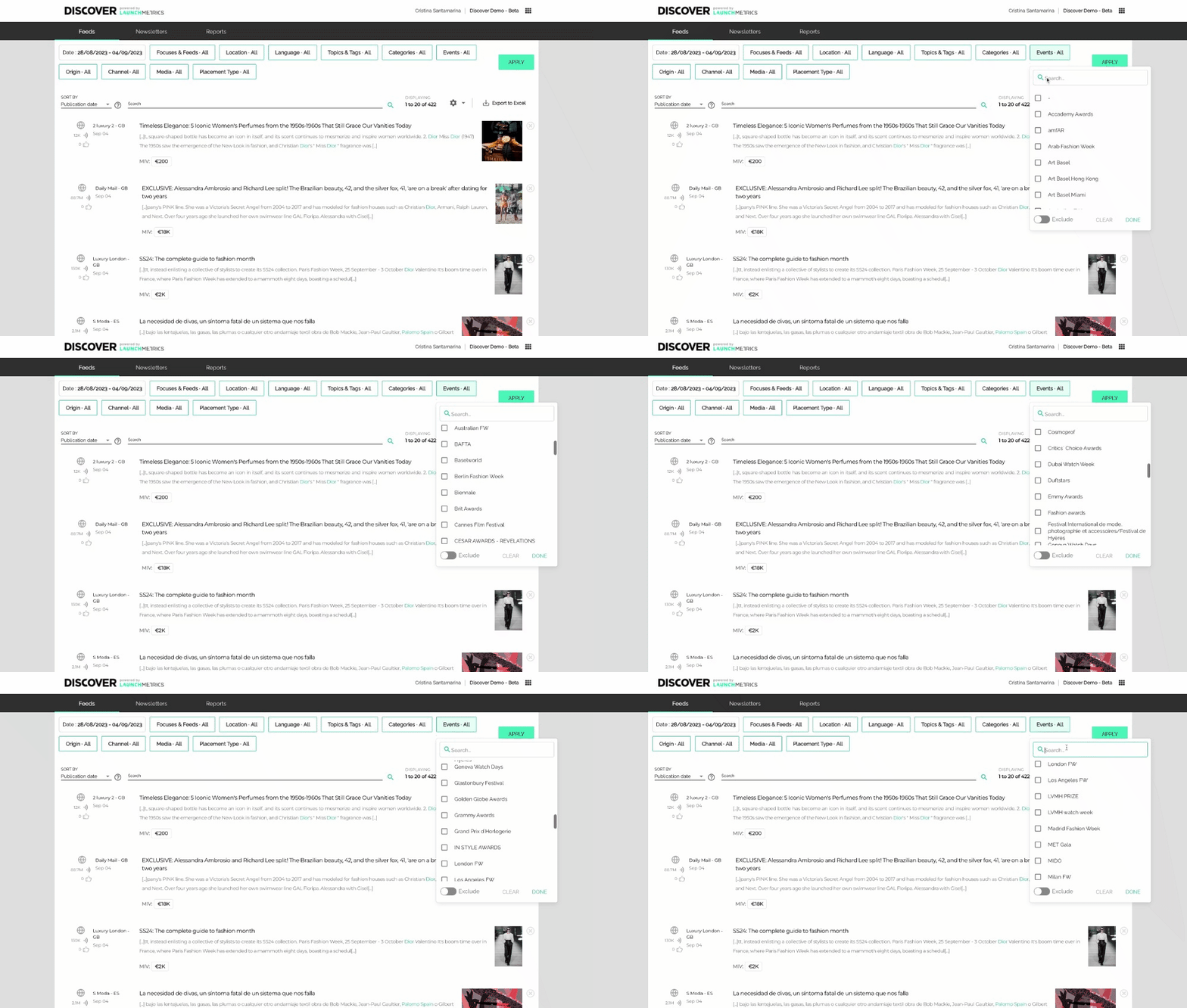
A while back we added the capacity to filter print placements by Event, and we could not miss it in our new horizontal filters, with two added benefits: you can now search and exclude events.
As a reminder, here you have the list of events tracked by our teams in print placements:
Events tagged (Updated Aug 2023)
Fashion weeks |
Industry Events |
Awards and Competitions |
Other |
Origin 🆕
|
✅ Print ✅ Web ✅ Social |
✅ Search ✅ Exclude |
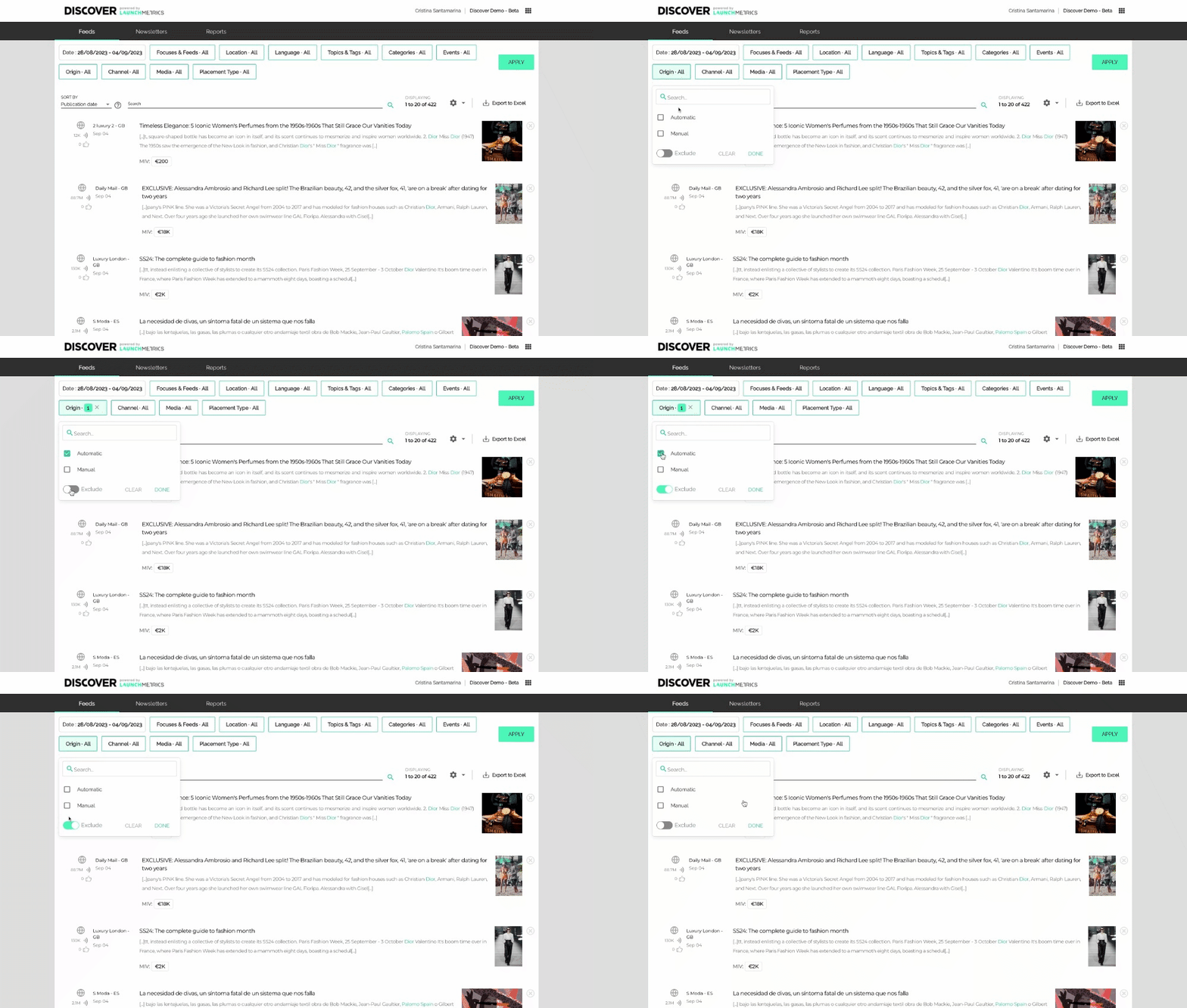
This filter was long awaited by Discover users that enter placements manually. Although manual inserts were identifiable in a feed through an icon, it was hard to work with them, and required time consuming workarounds, like tagging.
Users are now able to filter placements depending on their origin:
- Automatic placements are retrieved by Discover feeds with no human intervention.
- Manual placements are inserted by Discover users, one by one or in bulk.
Channel
|
✅ Print ✅ Web ✅ Social |
✅ Search ✅ Exclude |
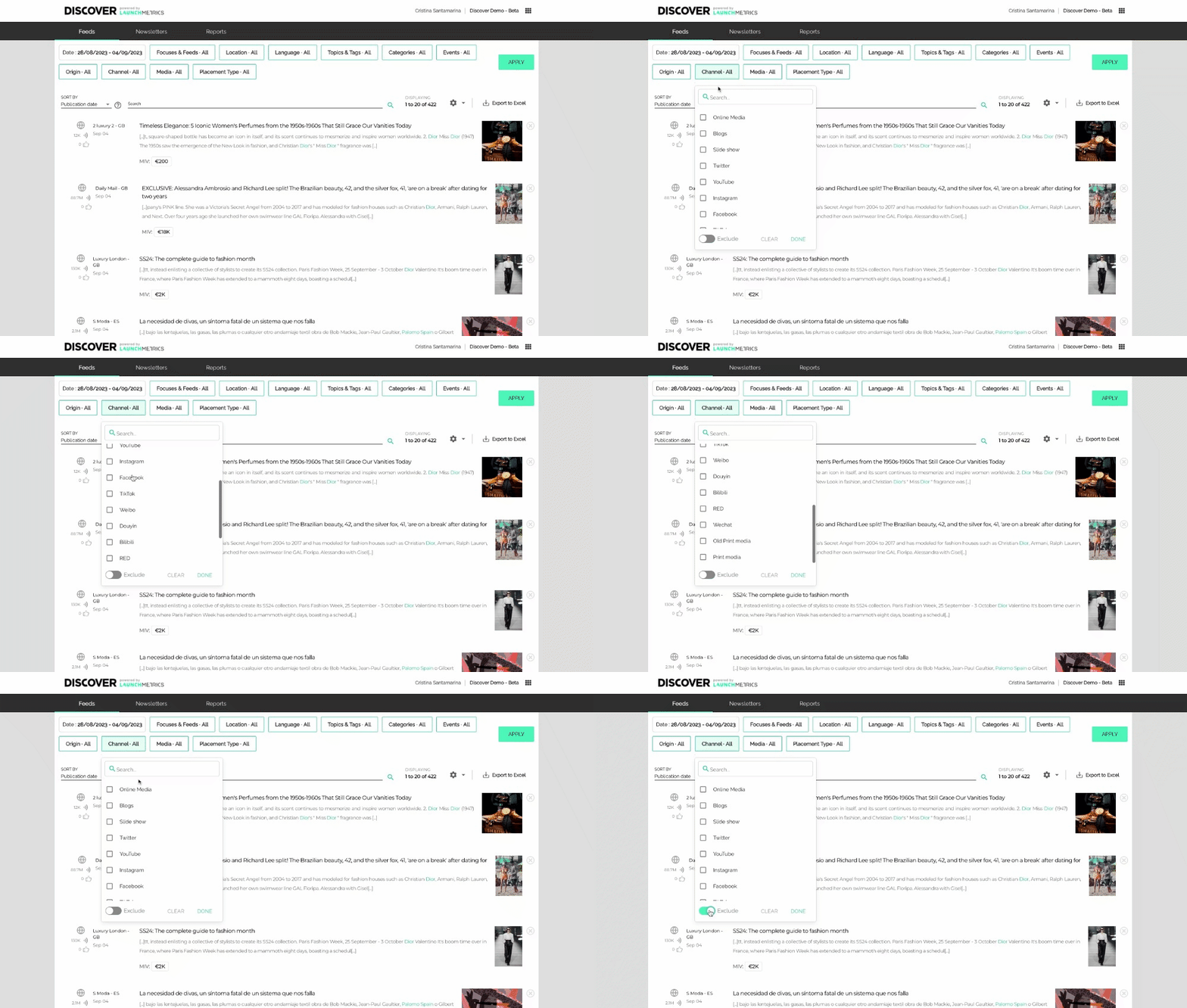
The channel filter shows all the channels tracked by Launchmetrics, and lets you refine to get results from the most relevant ones.
DeleteMedia
|
✅ Print ✅ Web ✅ Social |
✅ Search ✅ Exclude |
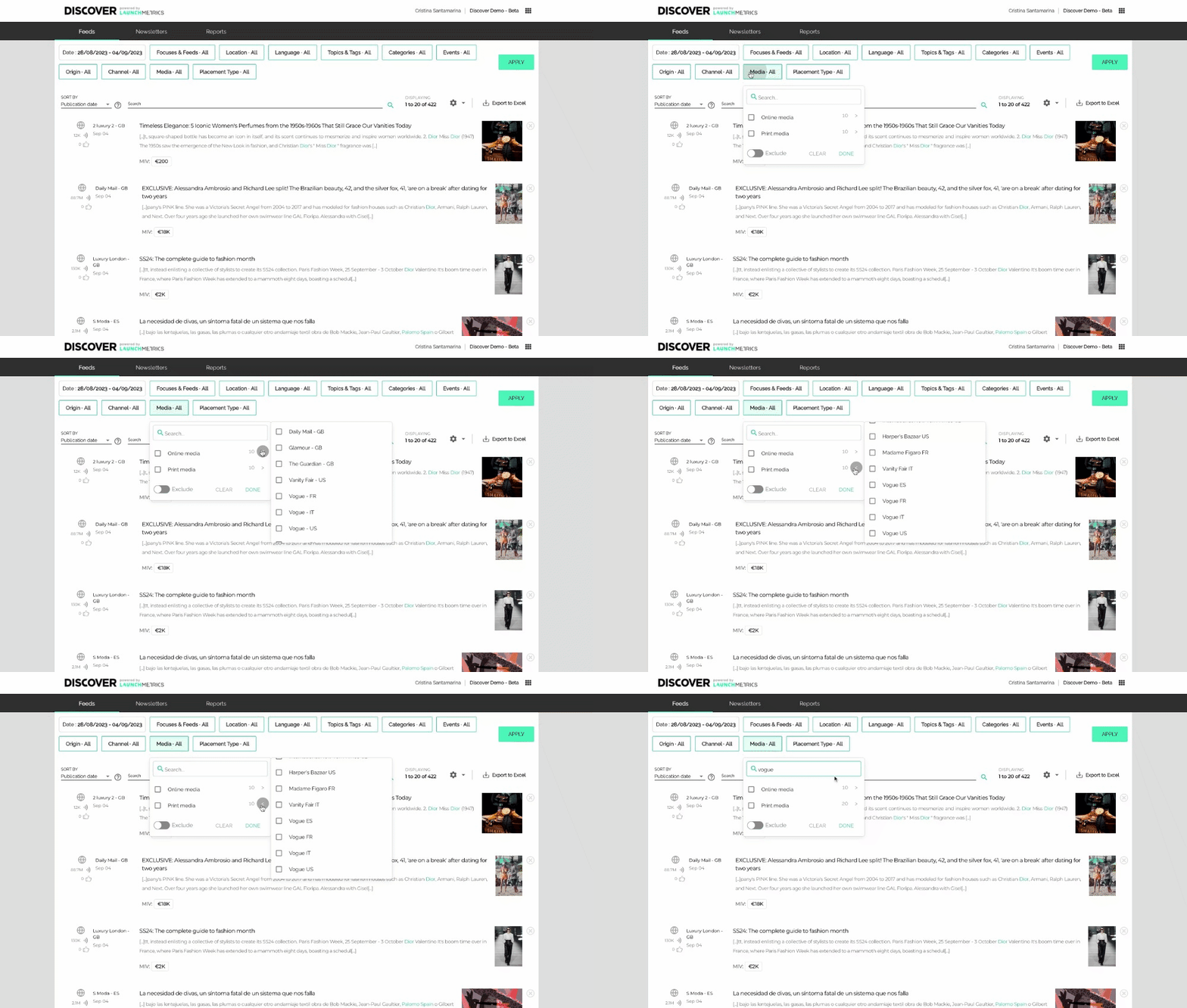
The Media filter groups all Print and Online media in two groups, and makes it easier to find the media you are looking for thanks to the filter search and the ability to exclude irrelevant media.
The list of Media immediately visible in the media filter is a handpicked list of popular media, but all of our catalogue is available when searching.
DeletePlacement type 🆕
|
✅ Print ❌ Web ❌ Social |
✅ Search ✅ Exclude |
For users that focus on Print content, knowing if a placement is an editorial, and advertising, or an advertorial is key to understand the impact of marketing and PR efforts in Brand value and awareness.
Our definitions for placement types are as follows:
- Advertising: Paid content with creativity.
- Advertorial: Paid content in the form of an article.
- Editorial: Unpaid, organic content.
Since we incorporated DMR data in Discover, we now have this information for all print placement in our historic archive, and with this new filter we make it easier than ever to report on the Placement type you need.
DeleteWe hope our improvements to the filtering will make your Discover experience better, and we'd love to hear any feedback you have, and any suggestions for improvements or additional filters that would be useful for you. Please be in touch with your Customer Experience Manager!
✅ Improved keyword search
You can continue to combine the new horizontal filters with the free text search in Discover - and we have also taken this opportunity as a chance to improve the free text filtering used in the Feeds Results page.
- Expect improvements in search performance overall, but specially when searching in Asiatic languages or whenever looking for content mentioned in the body of placements in all channels using our OCR capabilities.
- Searching with the text field now also looks for your keywords in the qualifications added to placements by Launchmetrics teams to printplacements:
- Editor
- Photographer
- Stylist
- Publication name
- Publisher
- Some of our search improvements will have an impact on Feeds, so we expect less noise and better results in online and social queries overall.
✅ Insert multiple online placements from a spreadsheet
If you regularly upload online placements to Discover, this feature is for you! Earlier this year we released a feature to insert multiple print placements using a spreadsheet, and a new button that lets you save any single insert and add a new one. Today we are happy to announce that you can now upload several online placements to Discover at the same time!
This feature replicates the same experience we designed for inserting multiple print placements at once: it all revolves around an excel template, that you can easily download from the insert content dialogue.
Select the feeds you want to add content to, and if you are not sure, do not worry! If no specific feeds are selected we'll prevent blocks by adding all of your active feeds to the options you'll have when entering the data.
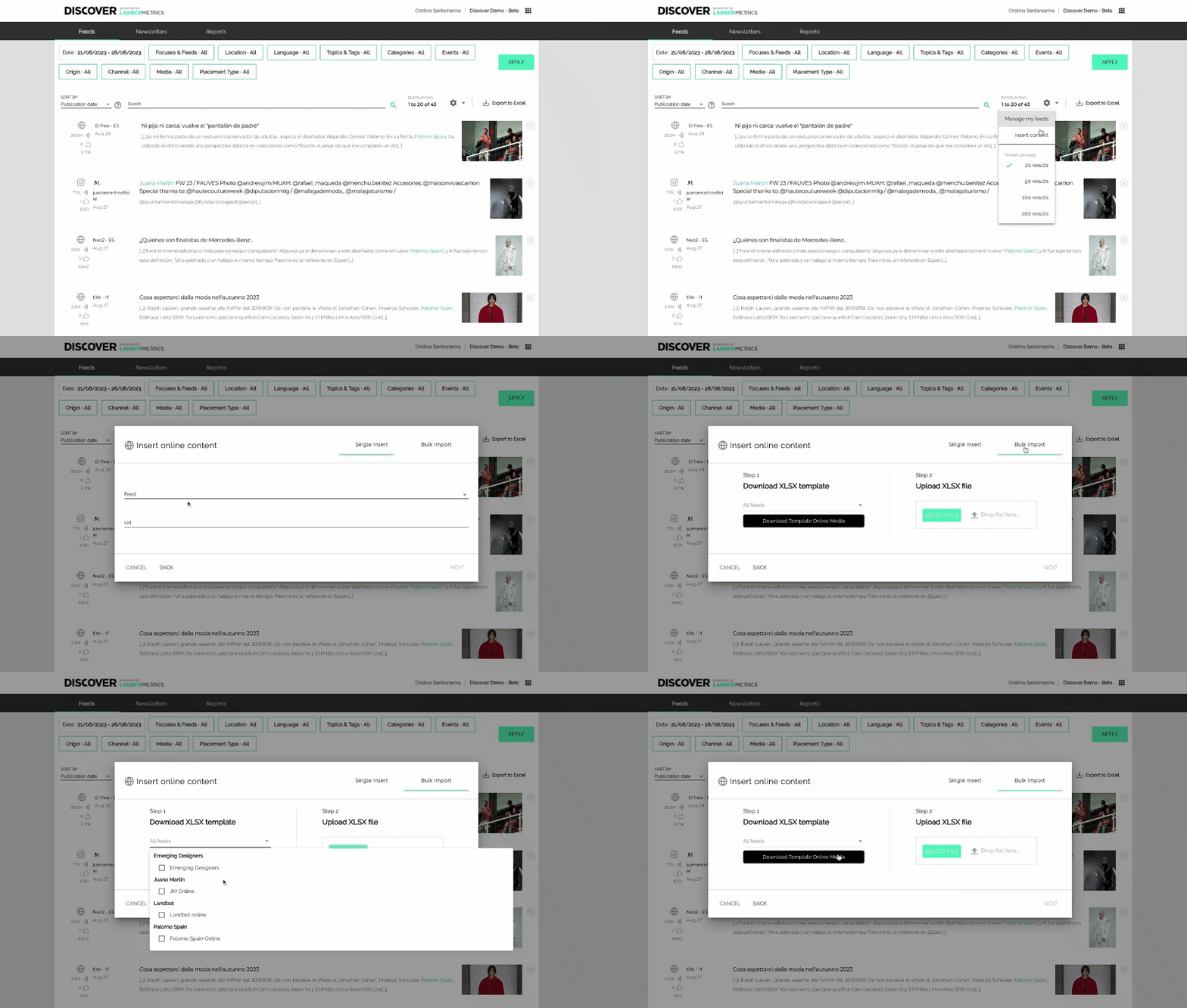
Your template has many columns, but don't panic, most of them are not mandatory. This template lets you add more or less complete information depending on what you know about each placement. We have also thought of a frequent need to add the same placement to different feeds: just copy the placement information in as many lines as you need, and use a different feed option in each of them.
Once you are done filling in the spreadsheet, you can upload it to the second step of the dialogue:
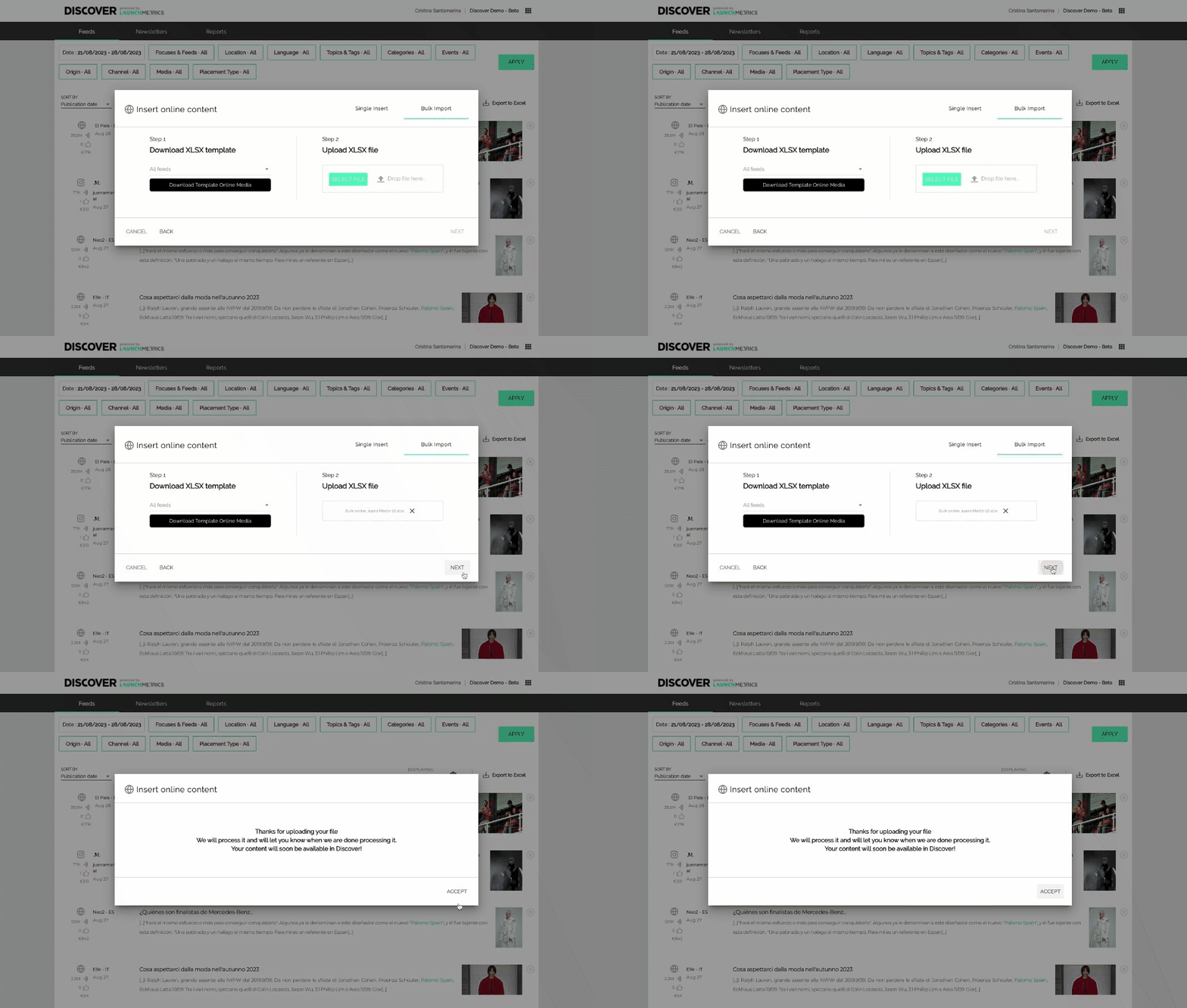
Once the upload is done, you will receive an email confirmation, including the number of placements inserted, and a file with any errors that came up during the insert, that will include a comment with the reason of the errors. Since this list of failed urls should be reduced, we recommend you do single inserts to have a closer look at the data and avoid errors.
The bulk online insert feature helps you get more content in Discover, in less time. We hope this will help you better showcase your brand impact activity in your upcoming reports.
Remember that once you have inserted the missing content you needed, finding precisely the placements you want to report on is now easier than ever with our new horizontal filters and text search.
We're looking forward to hearing your feedback on how our September releases are improving your day to day, and any suggestions you have to help you make the most of your brand activity data with Discover.
Discover Release / June 12th 2023
✅ Export Data Reports from the articles page - Now also using text search!
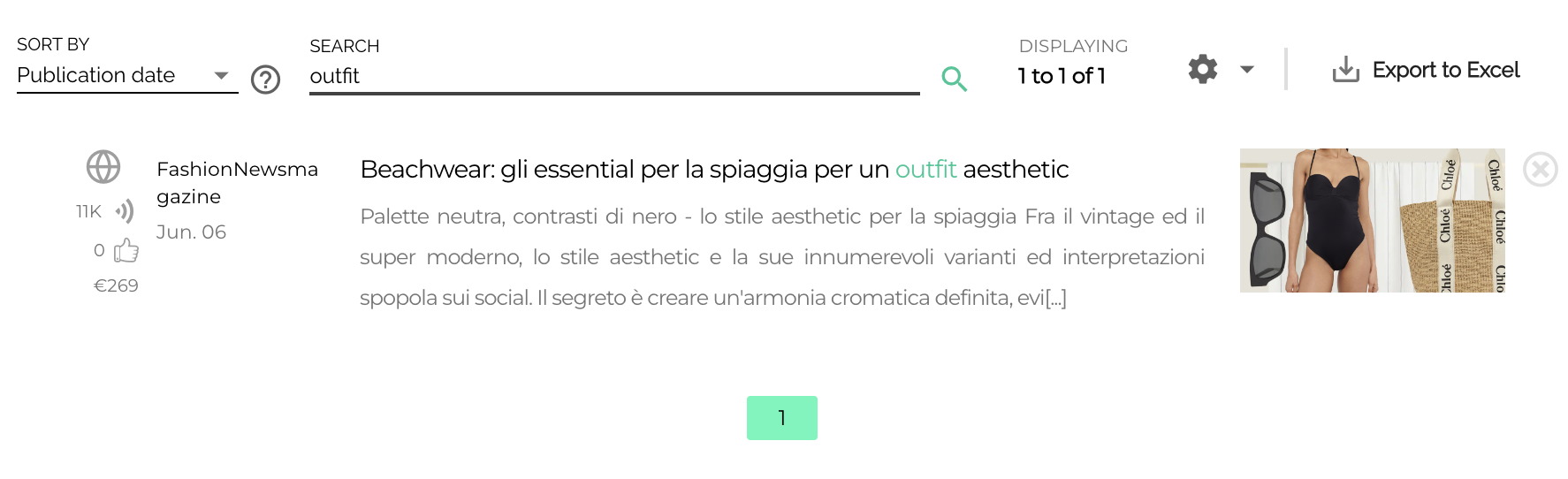
Create better reports, faster and with less effort. If you are already creating your Data Reports from the Feeds page, you will be thrilled about this improvement: You can now use the text search to filter the content in your export!
Just add your keywords to the search bar, click on search, confirm it's what you need and click on the button to create your export.
Discover Release / May 16th 2023
✅ Export Data Reports from the articles page
Create better reports, faster and with less effort. If you use Discover's excel Data Reports to do your brand impact analysis, you will love this new feature:
- Less steps: No need to leave the articles page to export the data. Exports, right where you are!
- Less repetition: Export xls data for multiple focuses at the same time: Just select multiple focuses, and we will send you one file per focus, with as many tabs as feeds selected. You no longer need to configure the same filters twice!
- More control: Use all of the filters already available in the Articles page, that were not part of Report definition. For example, you can now export data for a complete Topic or filter per Channel.
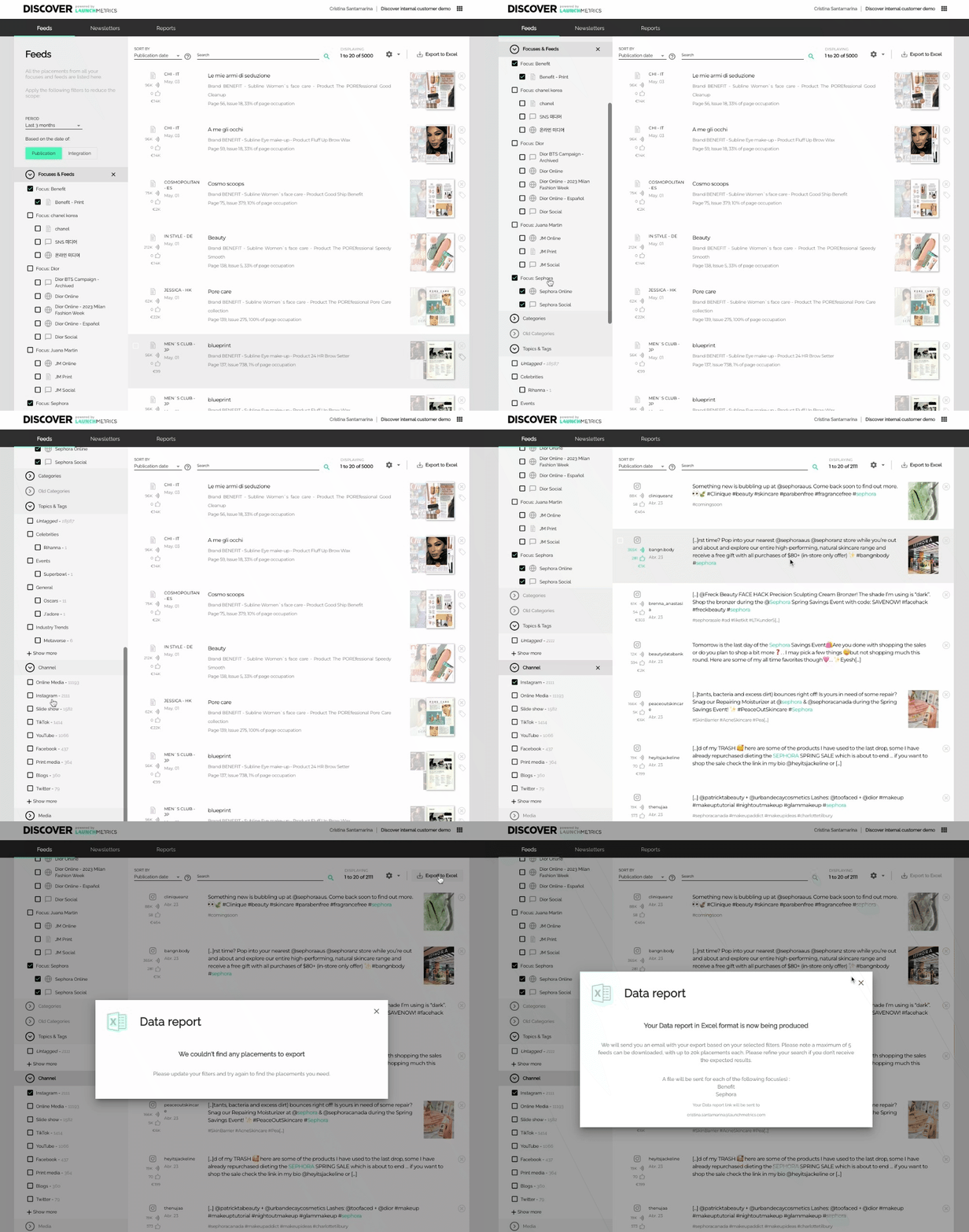
✅ Insert multiple print placements from a spreadsheet
If you regularly upload print placements to Discover, this feature is for you! Last week we released a new button that lets you save any single insert and add a new one, and today we are happy to announce that you can now upload several print placements to discover at the same time!
This feature revolves around an excel template, that you can easily download from the insert content dialogue. Select the feeds you want to add content to, and if you are not sure, do not worry! If no specific feeds are selected we'll prevent blocks by adding all of your active feeds to the options you'll have when entering the data.
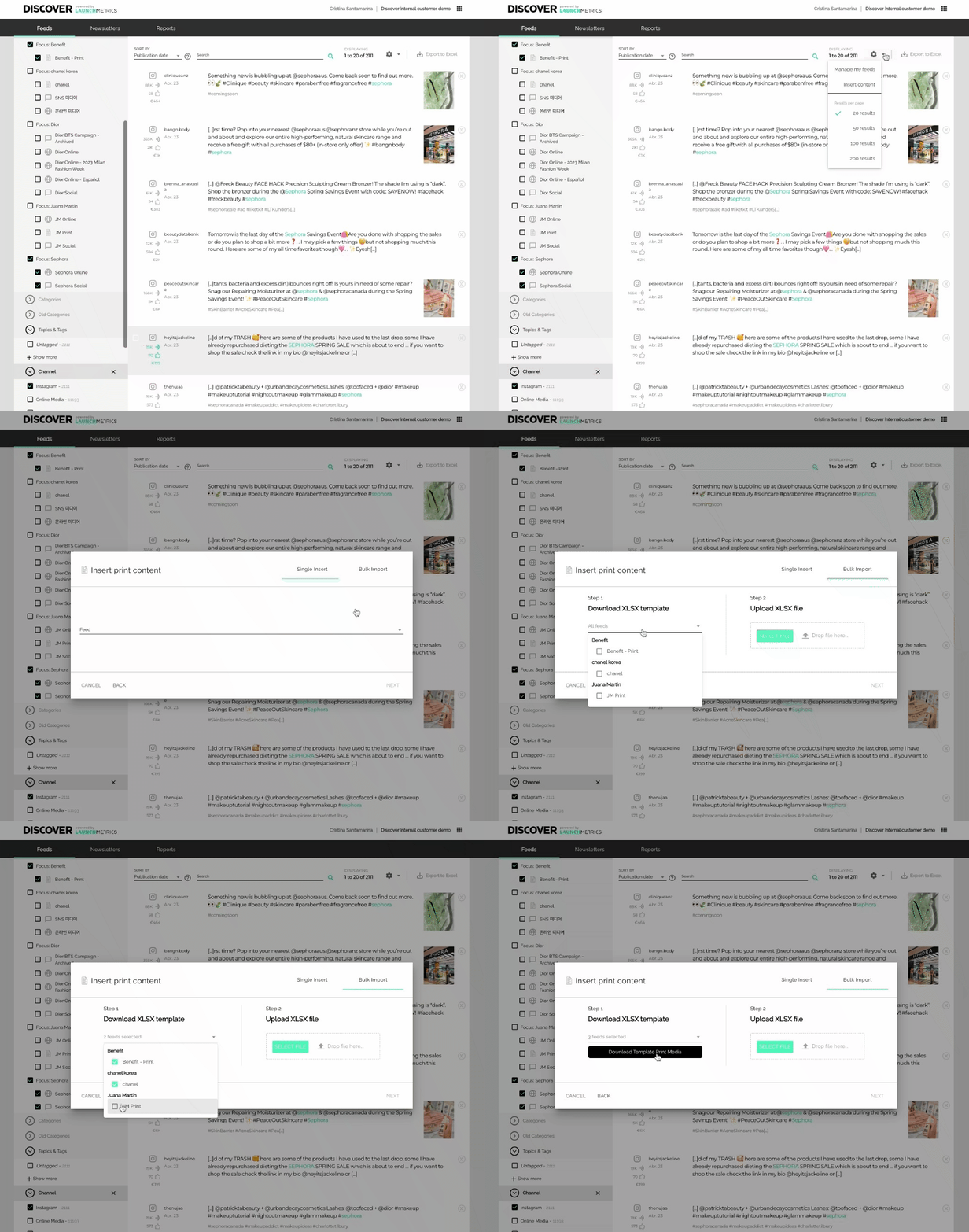
Your template has many columns, but don't panic, most of them are not mandatory. This template lets you add more or less complete information depending on what you know about each placement. We have also thought of a frequent need to add the same placement to different feeds: just copy the placement information in as many lines as you need, and use a different feed option in each of them.

Once you are done, upload the xls file to Discover just where you left the process.
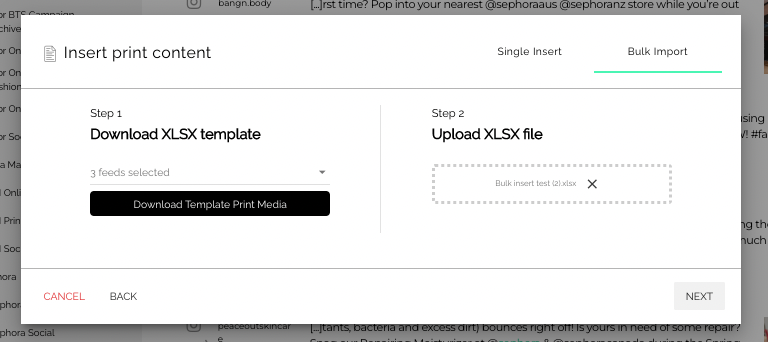
We will analyse your file to confirm we can import the content. If there are any errors, we will let you continue and send you the file with the errors via email so that you can repair them and retry the upload later on.

The last step of the bulk insert it adding the images to each placement. You can add the cover and article images in a simple drag and drop interface. Yes, you can now add covers to your manual print placements!
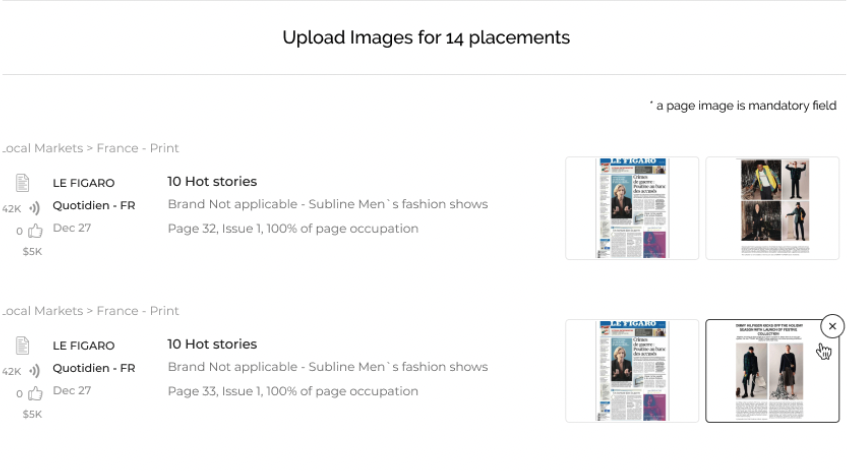
Stay tuned, we will make this functionality available to insert online and social data soon!
✅ Event information in print placements
To wrap up this release, we are happy to officially announce a new feature that will make it easier than ever to monitor your brand impact in fashion weeks and relevant events for fashion, lifestyle and beauty companies.
For print placements, we are tagging a list of more than 50 relevant events, and you are now able to filter content in the articles page using an Events filter. The Event information is also available in Data Reports for exports of print data where there is at least one Event.
Events tagged (Updated may 2023)
|
Fashion weeks Arab Fashion Week Australian FW Berlin Fashion Week London FW Los Angeles FW Madrid Fashion Week Milan FW New York FW Paris FW Rakuten Fashion Week Shanghai Fashion Week Seul Fashion Week |
Industry Events Salone del Mobile Dubai Watch Week Geneva Watch Days Grand Prix d`Horlogerie Watches & wonders Geneva Watches & wonders Hainan Watches & wonders Shanghai Festival International de mode, photographie et accessoires/Festival de Hyères Art Basel Art Basel Hong Kong Art Basel Miami Pitti Cosmoprof |
Awards and Competitions Academy Awards Olympic Games Roland Garros David di Donatello Awards Wimbledon Super Bowl Glastonbury Festival Golden Globe Awards Grammy Awards Emmy Awards Fashion awards SAG Awards (Screen Actors Guild Awards) Sanremo Festival Shanghai International Film Festival TFF Awards Venice Film Festival BAFTA Biennale Brit Awards Cannes Film Festival CFDA Awards Cesar Awards - Revelation Critics` Choice Awards |
Other LVMH PRIZE LVMH watch week MET Gala Rose Ball CONVIVIO MIDO Duftstars amfAR Coachella Festival |
Discover Release / May 4th 2023
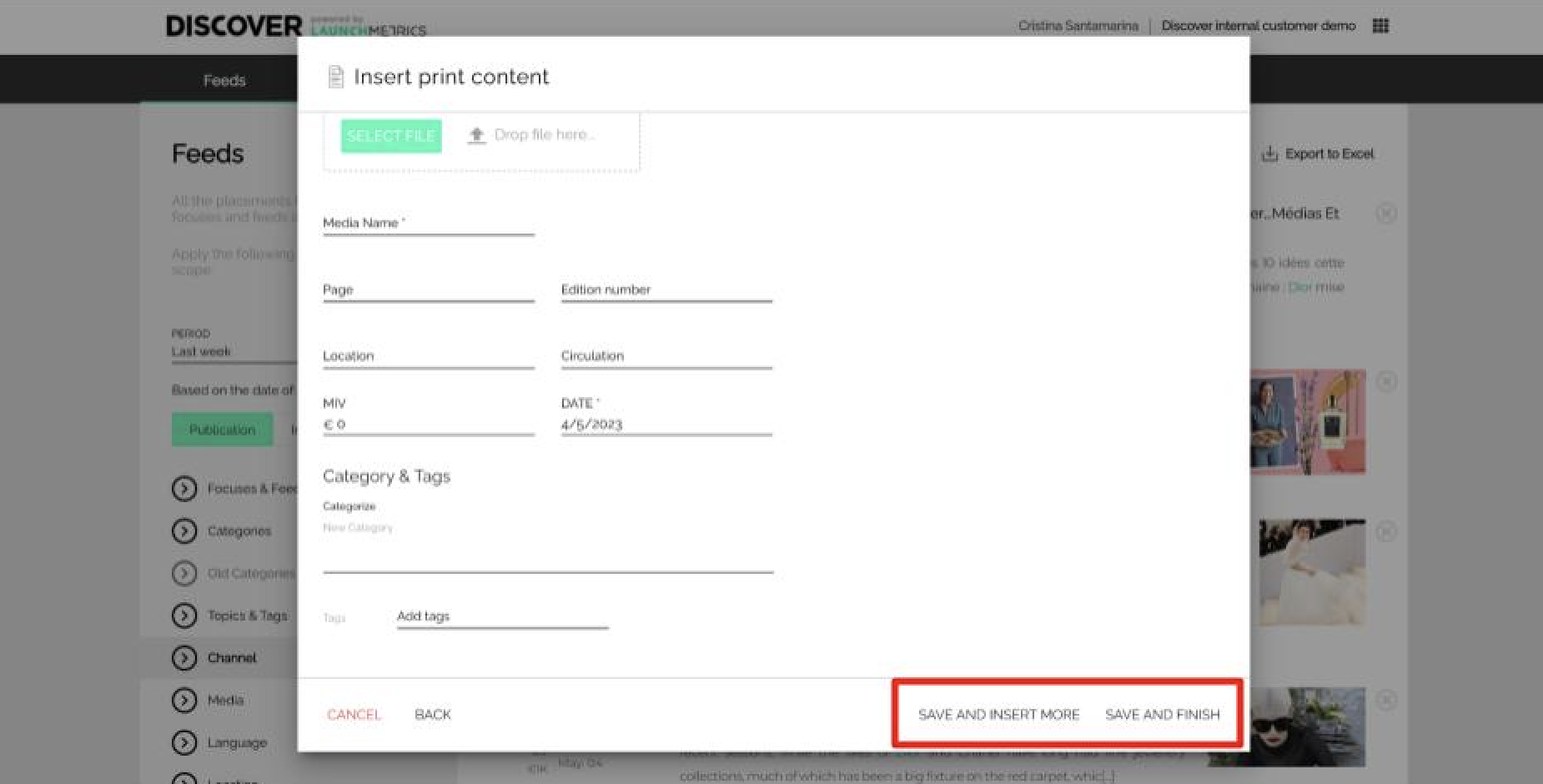
✅ Save a manual insert and add another
For users who regularly insert Print, Social or Online content in Discover manually, we are making improvements to reduce the number of steps needed to get multiple placements into the platform.
As a first step, Discover users can now save single inserts and add another of the same type, to the same feed or to another one, without leaving the insert placement flow.
April 2023 Data updates
We continuously improve our data to help you get an exhaustive and up-to-date measure of your brand performance. Here is a recap of our latest improvements and how to navigate them as you explore your dashboards and analyze your data.
Reach for Online placements
We will display figures related to the number of unique visitors instead of repeated visits to align with the industry and our customer's expectations. This will have no impact on MIV; as views are still used to estimate the impact of a placement.
More Instagram accounts and additional fields
Expect a significant increase in social mentions and MIV related to Instagram with these new changes:
- addition of more than 20K Instagram accounts to our panel
- tap tags (brand mentions tagged in the picture/video/carrousel placements) are now monitored
- sponsored / "Paid Partnership" information from placements is now monitored
Longer updates for TikTok placements
We used to refresh engagement metrics to TikTok posts for 7 days after their publication. To better reflect the virality of this platform, we are increasing this to 30 days. Expect to see higher engagement figures and MIV!
Discover Release / Feb 24th 2023
✅ See topics and tags in xls reports
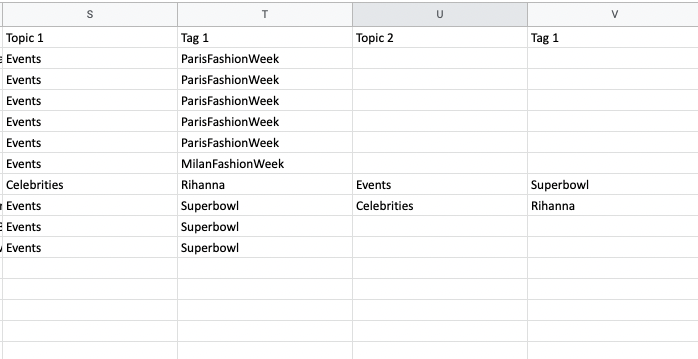
If you use tags to qualify content in Discover, you'll be happy to learn that XLS exports now include the Topics related to your tags.
In the past, the space for up to 10 tags was always included in exports, and filled with tags whenever they existed. Topics were not visible at all.
With the latest changes, you'll be able to see up to 10 topics, with 10 tags in each of them, only when there are any for your placements.
We hope these changes will make your Data Reports more valuable to you, and look forward to hearing your feedback!
✅ See topics and tags in xls reports
If you use tags to qualify content in Discover, you'll be happy to learn that XLS exports now include the Topics related to your tags.
In the past, the space for up to 10 tags was always included in exports, and filled with tags whenever they existed. Topics were not visible at all.
With the latest changes, you'll be able to see up to 10 topics, with 10 tags in each of them, only when there are any for your placements.
We hope these changes will make your Data Reports more valuable to you, and look forward to hearing your feedback!
Discover Release / 14th February, 2023
✅ Sort placements by Relevance
Do you often looks for specific placements in Discover? Now it's easier than ever!
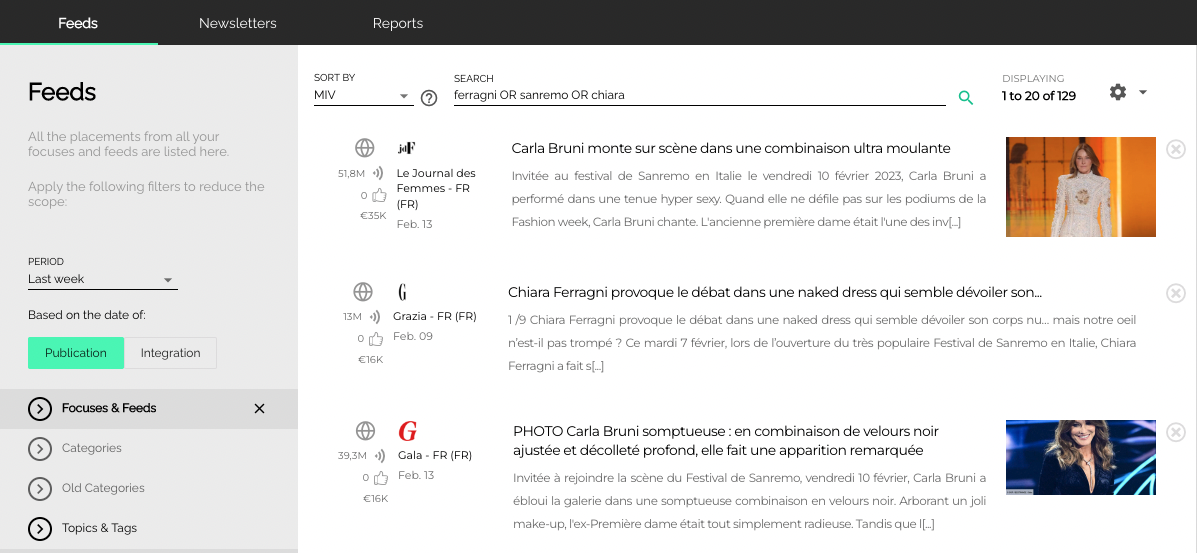
Whenever you use OR to find placements that match a series of keywords, use the sort by Relevance option to see placements that match the most search terms in the top positions of your feed.
Below, you can see the results for an OR query sorted by MIV, and sorted by relevance. As you can see, in the sorting by relevance the first post is about Chiara Ferragni at Sanremo, while in the sort by MIV the first result is about Carla Bruni in Sanremo, but not about Chiara Ferragni.
 |
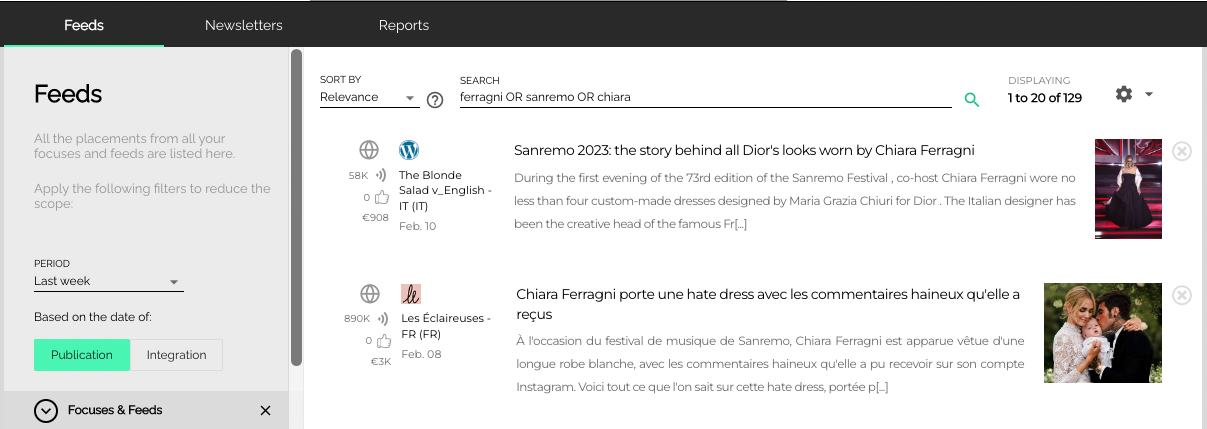 |
| Before sort by relevance | With sort by relevance |
Discover Release / January 12th 2023
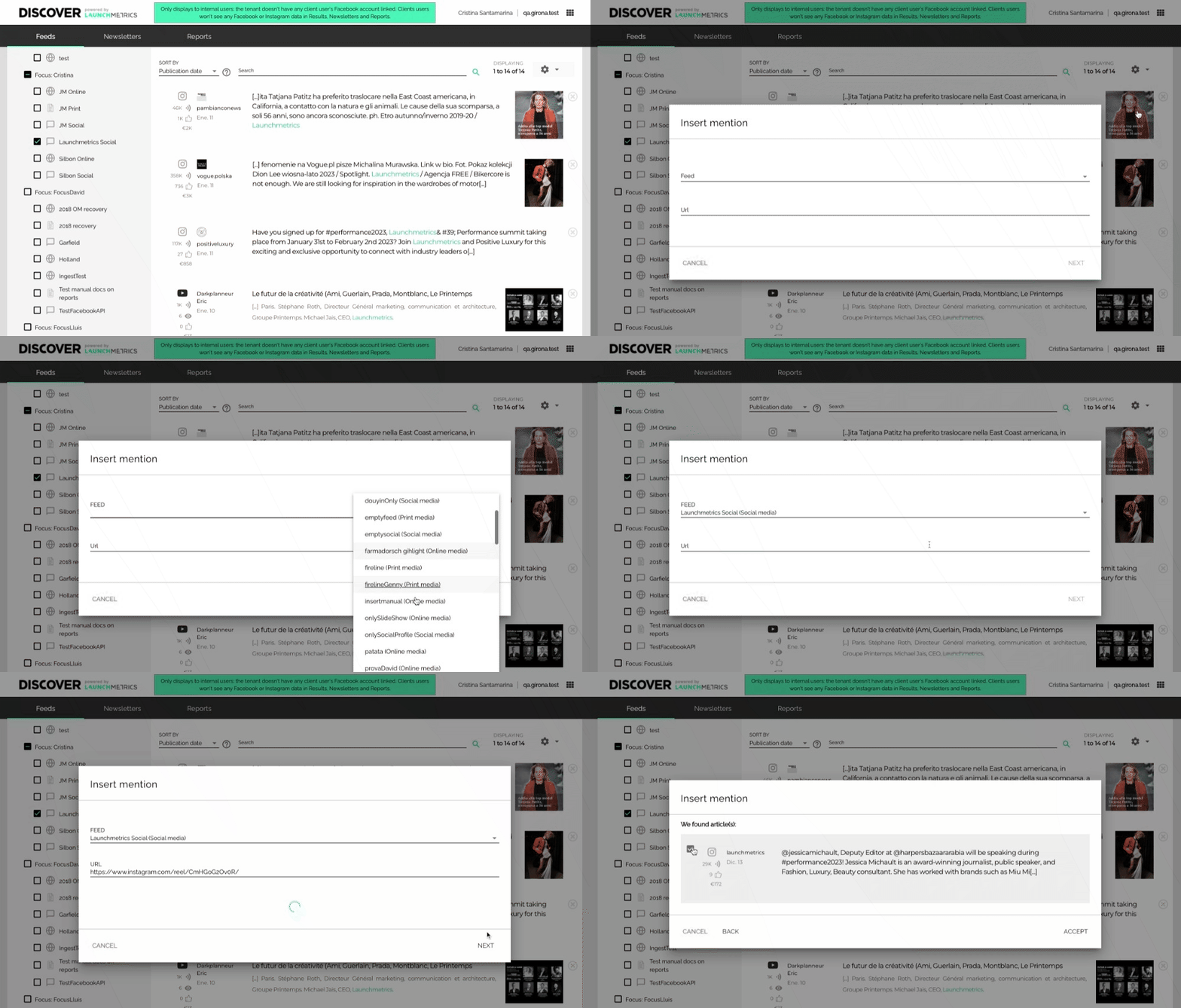
✅ Insert an Instagram Reel in a Social Feed
You can now insert an Instagram Reel in Discover!
This new feature will help you get all the content you need to measure and amplify your impact.
If you paste the URL of an Instagram Reel in Discover, with the format https://instagram.com/reel/... we will look for the Reel in our dataset. We have a full year of historical data for selected accounts that you can add to your Feed in one click, but even if the Reel you are trying to upload is not part of our historical data, you can manually enter the basic details and we will make it available in your Feed.
Discover Release / 22nd December 2022
✅ Find Print publications and Social accounts through text search
Discover users can use the text search to find specific print publications or social media accounts.
This new feature helps users find the content they need in an easier way.

Discover Release December 15th, 2022
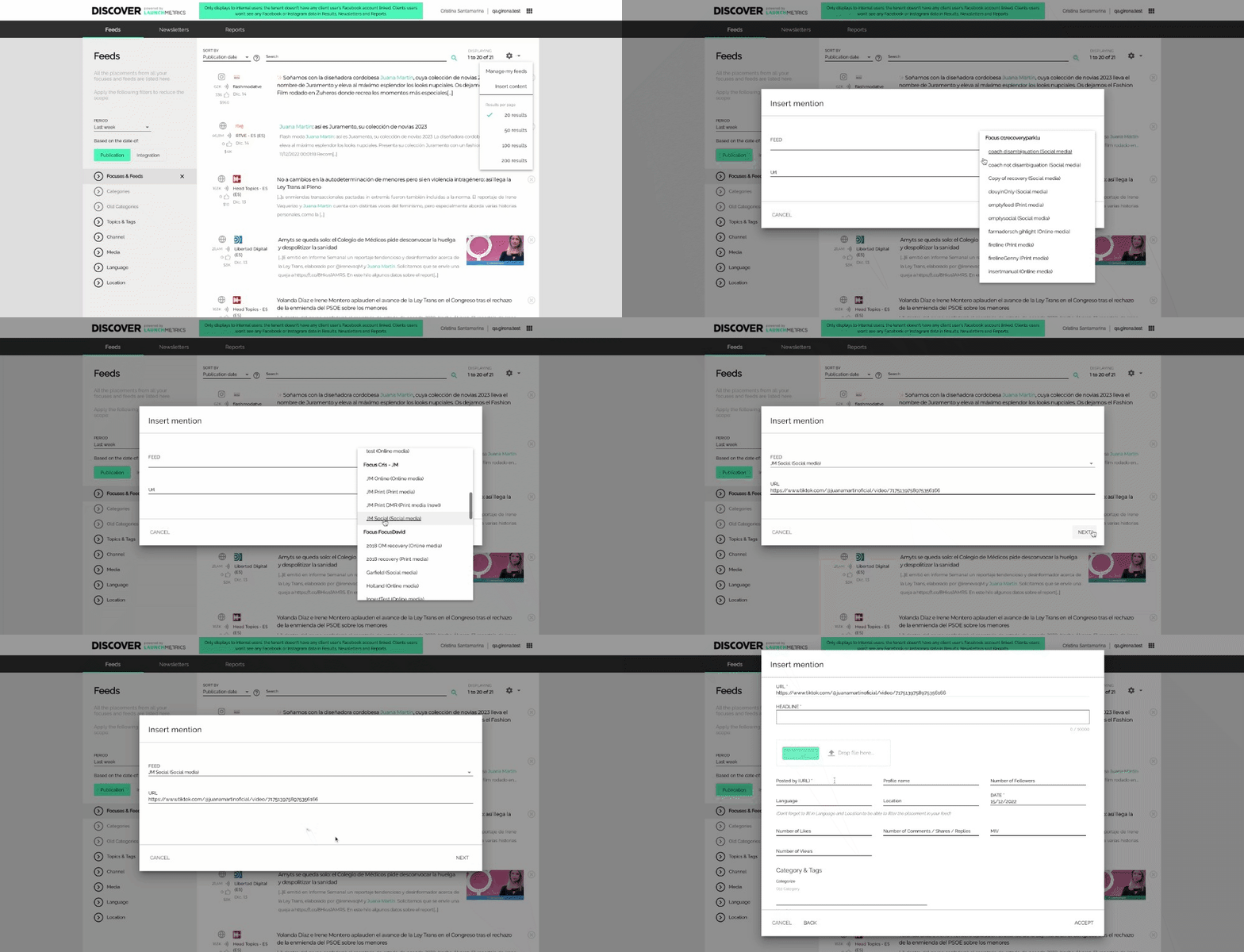
✅ Insert a TikTok Post in a Social Feed
Discover users can now insert a TikTok post manually in their Social Feeds.
This new feature helps users get more of the data they need.
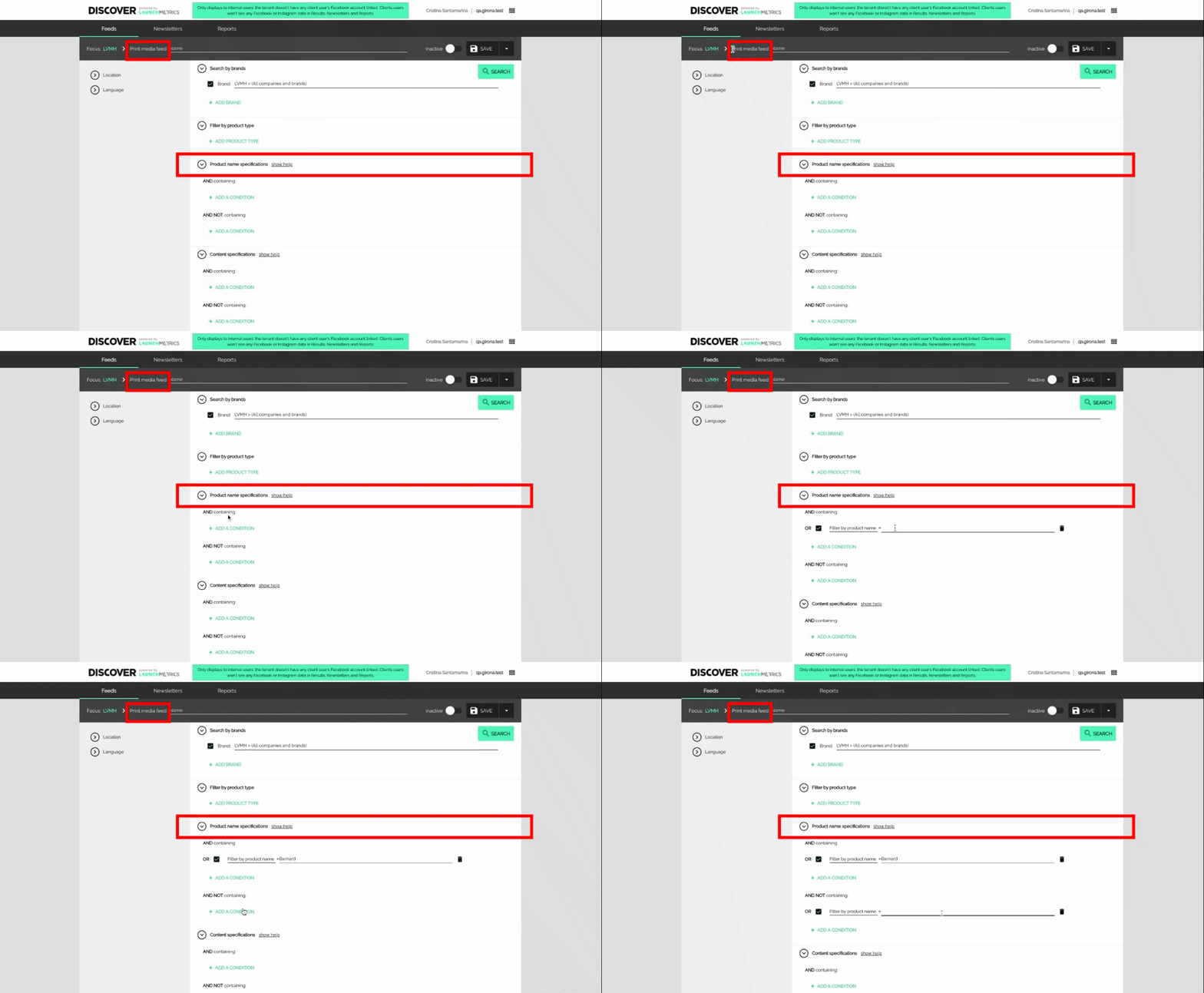
✅ Configure Print Feeds filtering by Product
Discover users can now filter by Product when they configure their Print feeds.
The product name only works if it has been previously configured for each specific Tenant by the Launchmetrics team. This option is only available in Print feeds and there is no autocomplete.
Discover Release / Nov 4th, 2022
🗓 released Nov 4th ✅ Article Grouping When clicking into a reference from your P...
🗓 released Nov 4th
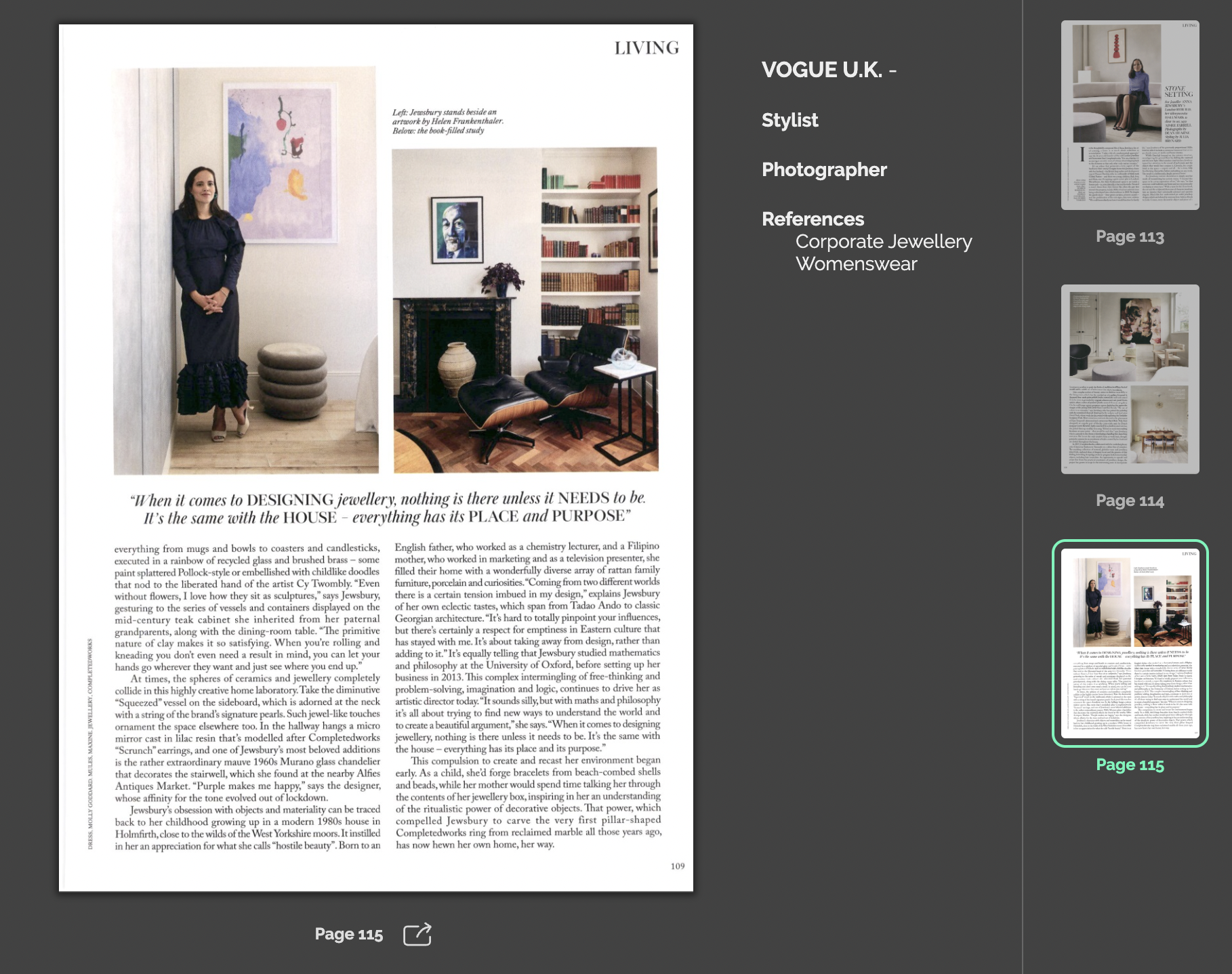
✅ Article Grouping
When clicking into a reference from your Print feed—only new feeds, not old print feeds—you will be able to see the full article where the reference appeared. This will replace the "corporate alert" feature enabling you to get the full context in which your brand is mentioned.
Discover Release / October 31st, 2022
🗓 released October 31st ✅ DMR Print data migration completed Launchmetrics solut...
🗓 released October 31st
✅ DMR Print data migration completed
Launchmetrics solutions now have one consolidated Print media reading list
- Clients will benefit from a 56% overall increase in Print publications.
- 910 new titles have been added, including 100+ top global newspapers and 11 new countries.
- APAC Region is the one where coverage has increased the most due to the migration
- Timings of delivery will improve, in particular for APAC and Middle East
Print MIV methodology updated
- On average, Media Impact Value will grow due to both panel size increase and methodology changes.
- Overall page occupation will tend to grow
- EMEA Region is impacted in terms of MIV growth mostly due to Italian Print Media now using Gross Economic Value for its advertising rates.
- Beauty is the most impacted industry, alongside Jewelry & Watches.
Read full details about the migration and changes here
Newsletter split by Focus, Channel or Feed / July 26th, 2022
🗓 Released July 26th Newsletters are a powerful way to showcase your coverage to...
🗓 Released July 26th
Newsletters are a powerful way to showcase your coverage to your team and management. It gathers the best results by Reach, Date or MIVToday it is possible to create as many newsletters as there are brands or markets to analyse, resulting in a lot of emails received and the need for team members to open each newsletters separately. We've brought more customization when setting up newsletters.
✨ Split Newsletters by Focus, Channel or Feed
Utilize the Display Layout section of a Newsletter Setup to organize Layout Settings by either Focuses, Print/Online/Social Channel's, and Feed's. Layers can be custom organized to best fit the needs of any newsletter:
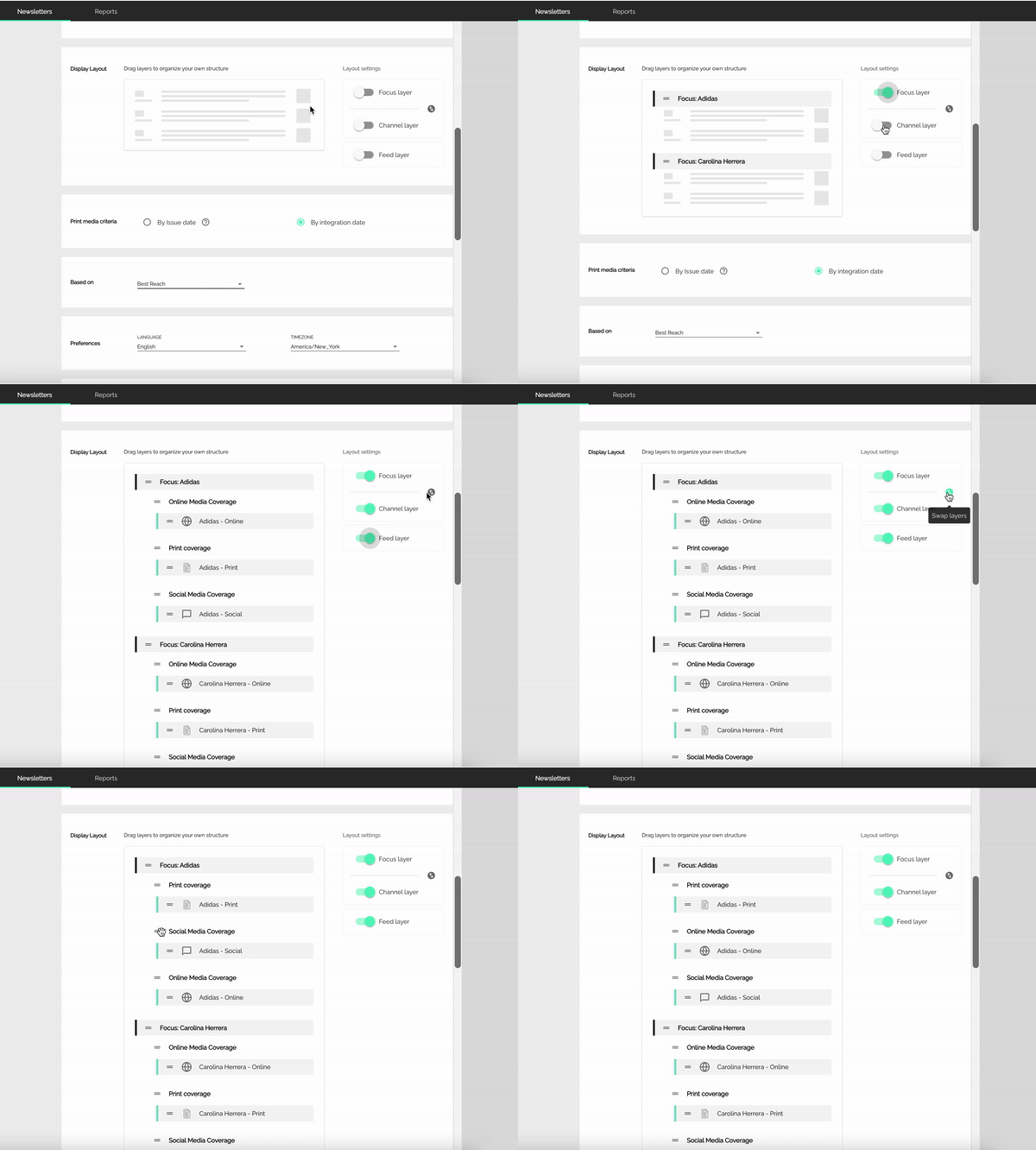
You can add as many focuses and feeds as you like in the Focuses & Feeds section. The added feeds will appear in the Display Layout for you to arrange them.
You can also decide at which level of priority your coverage must be split: by Channel, Focus and Feed or by Focus and Channel for example. We've made the design flexible, you decide what is the best for you.
Once the setup is done, simply save your newsletter and you will start receiving the coverage with the right layout:
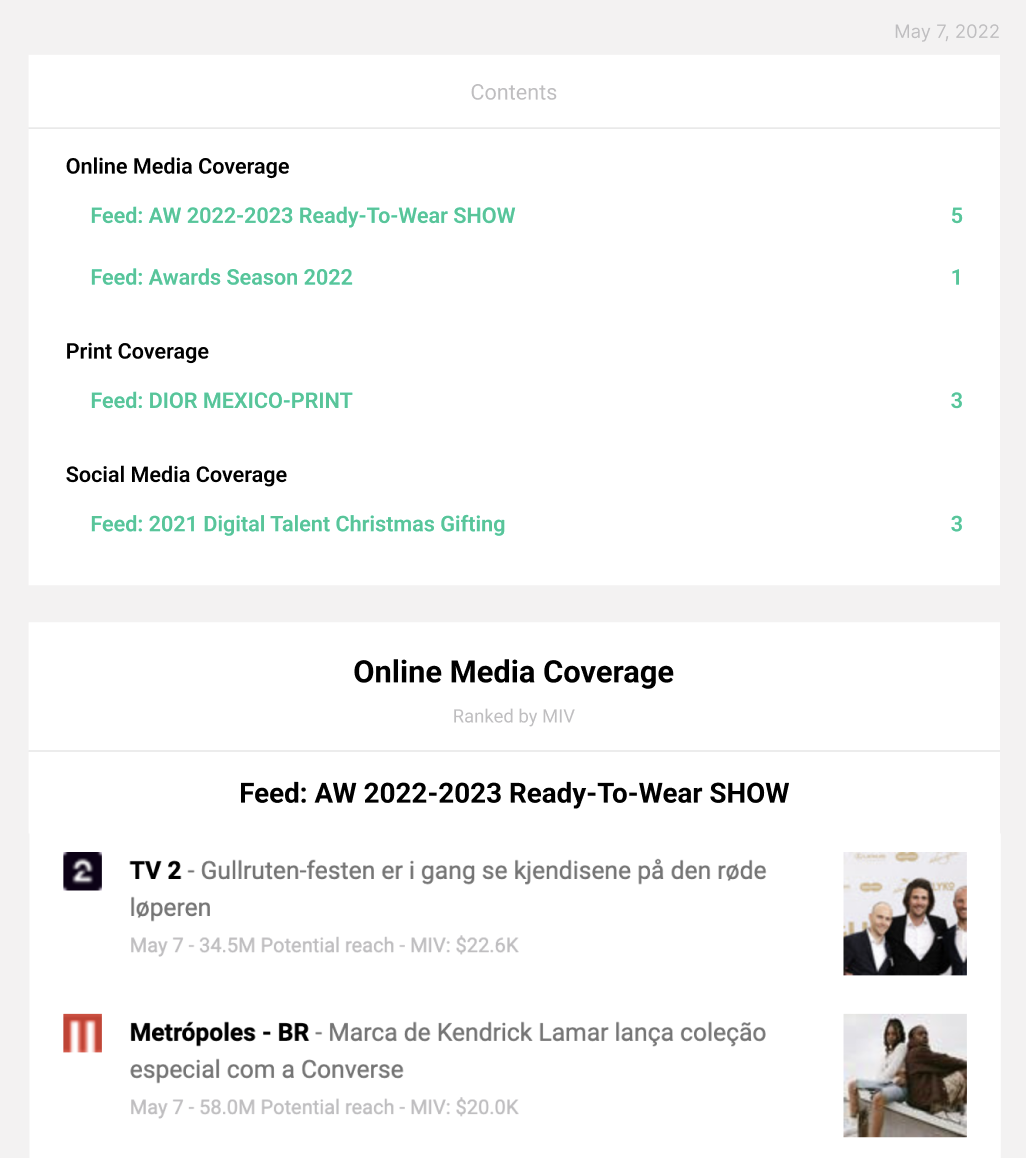
Good to know
- The new design only applies to FullResults newsletters
- We've added a Contents section in the newsletter to help you understand how it is organized. For each Channel, Focus or Feed the Contents section displays the total number of placements that are included within your feeds. Each section fo the newsletter displays up to 20 results. If there are more display, go to Discover to find out the rest.
- Click on a section in the Contents to be redirected to the right newsletter's section and see the coverage of the Channel, Focus or Feeds
This feature is perfect if you:
- want to see the split between different brands (feeds) when receiving a full results newsletter
- want to receive only one newsletter broken down by markets
- work at an agency and wish to received a global overview of the coverage for the brands you manage
Don't hesitate to reach out to your support team to better understand how to use the feature or if you have any question.
Report Online missing placement or media / May 17th, 2022
🗓 Released May 17th Having missing online placements is a fact. Even though we m...
🗓 Released May 17th
Having missing online placements is inevitable. Even though we make huge efforts to improve our monitoring process and tools, having zero missing placement is still a hard goal to reach. The reasons are numerous:
- We may not yet monitor a media
- The online media added new sections
- The media has changed the way it is coded and structured and our crawling configuration is not aligned anymore,
- News articles are released through press/news agencies (such as Reuters, Associated Press or AFP) and the media receive these articles through syndication or other means.
We constantly keep an eye on this problematic media but it can be time consuming and we also rely on our users to report on missing placements or media.
To save your time and provide the placements more rapidly we've just made the reporting process easier and faster through this new Discover feature.
✨ Report a missing placement
It can happen that we do monitor a media but that a certain placement is missing. In this case we might just need to update the media's configuration to better capture its content and you can help us do it.
First you can check in Discover if a placement is missing by trying to insert its URL in the insert mention feature. If Discover doesn't find it now you have the possibility to report the placement as missing. Simply click on the "Yes, report missing placement" button to send our team a notification. Once received we will investigate the issue and if we can solve it, you will receive a confirmation that you can now add the placement to your feed.
No more need to contact your support team, just use this new feature and we take care of the rest.
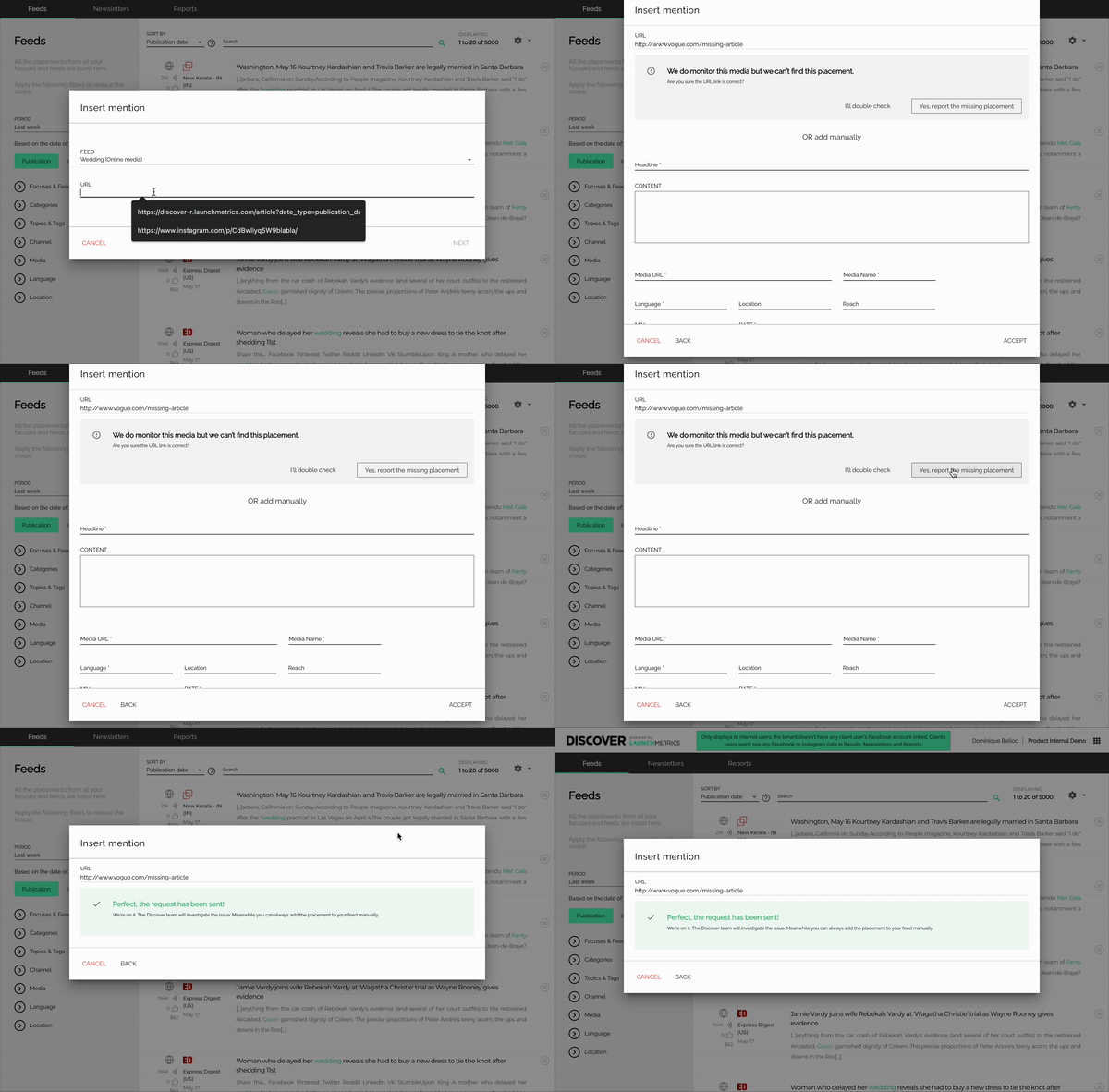
✨ Report a missing media
Sometimes we can't capture a placement because we don't monitor the media. Not to worry. For Online we can always add new media to our reading list if the media is relevant to the Fashion, Luxury and Beauty industries.
When trying to add an article from a missing media, click on "Yes, report the missing media" to send the request to our internal for review.
Once the request is processed and if the media is added to our reading list, you will receive an email to confirm that you can now access the content of this media and thus the placement you were trying to insert previously.
Again, no more need to contact your support team when you noticed a missing media.
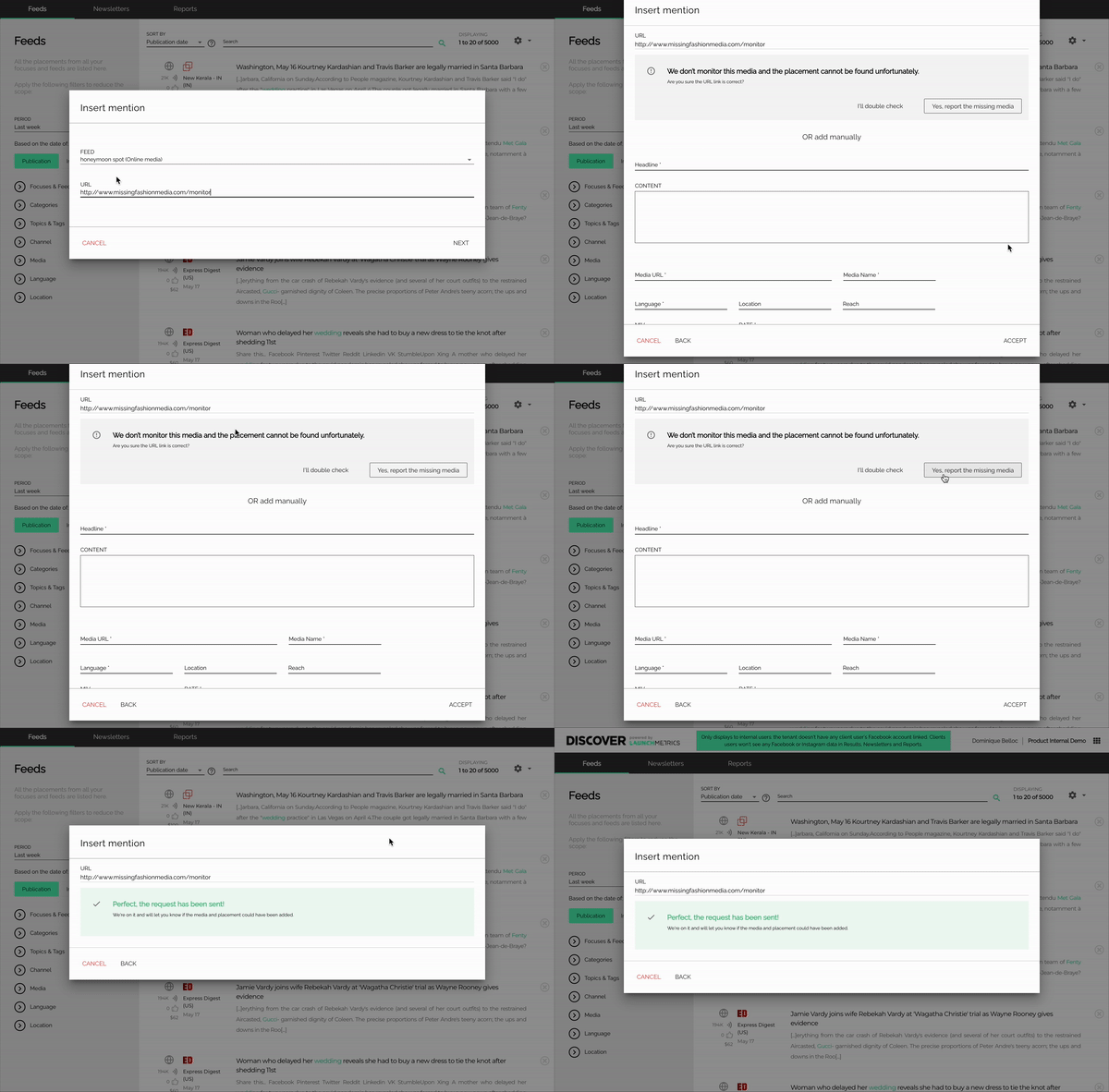
Good to know
- Don't be afraid to use this feature, the more we know about missing media or placements the more we can improve.
- Once the request is sent, our team will review it as soon as possible. No need to report a placement or media several times.
Don't hesitate to reach out to your support team to better understand how to use the feature or if you have any question.
Tags drag & drop / April 26th, 2022
🗓 released April 26th ✨ Tags drag & drop Easily organise your tagging struct...
🗓 released April 26th
✨ Tags drag & drop
Now you can easily drag & drop tags to other topics and rapidly re-organise your tagging structure. The topic/tag hierarchy is automatically updated in the placements’ info meaning that your will still be able to filter your content using the tags you moved to other topics.
To use the drag & drop feature, click on your account name and go to your tag manager page. On this page you can see the full topic/tag hierarchy. Select and hold a tag you want like to move to another topic and simply drag it to the new topic name.
.gif)
This feature is great if you:
- want to start a tagging project including a complex tagging structure,
- increase your usage of topics and tags and you want to organise your work more efficiently even after tags have been created,
- created a tag in the wrong topic by mistake.