
Email Domain Manager
For example: If your email address is janedoe@company.com, and you want to send a Contacts mailing or an Event Mailing with your email address as the SEND FROM EMAIL address, you will need to make sure that your domain (e.g. company.com) is added and verified in the Email Domain Manager.
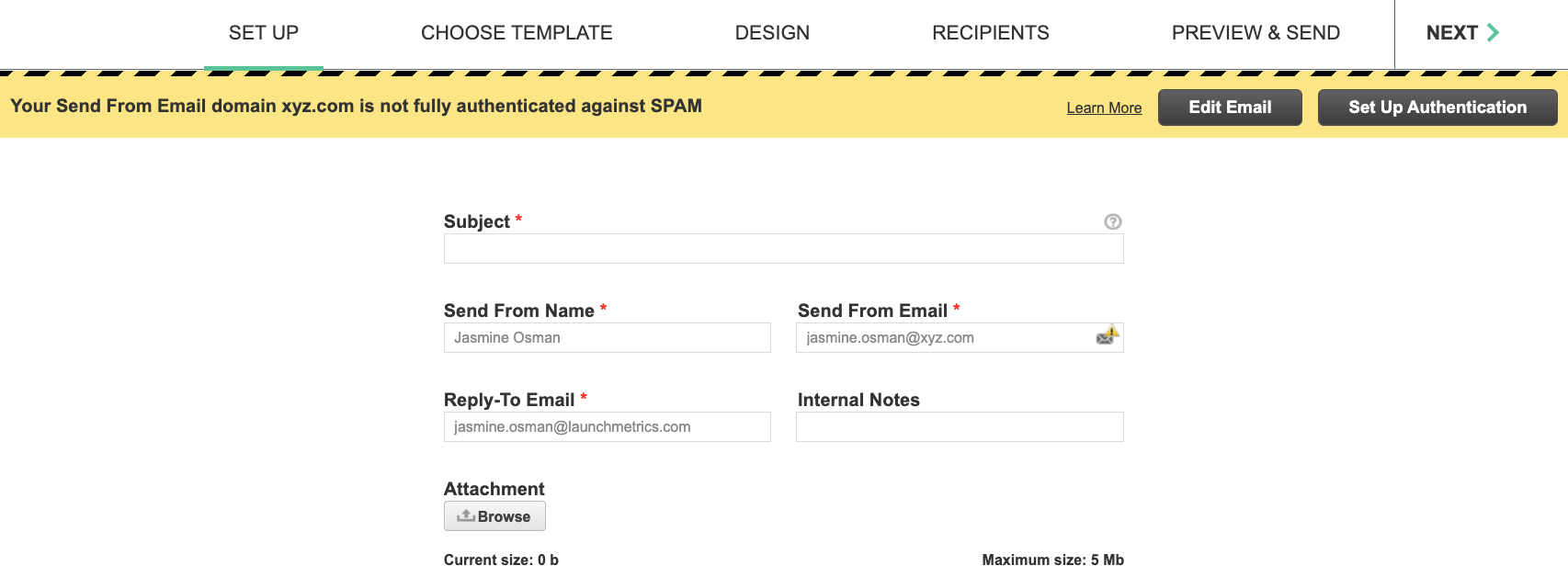
Note: company.co.uk is a separate domain from company.co or company.co.fr so if your company has multiple email domains OR if you send emails on behalf of other companies, every individual email domain would need to be added and verified as needed.
Why do I need to do this?
Internet Service Providers (ISPs), like Google, Yahoo, and Microsoft, use different types of authentication as a way to scan incoming emails for spam. Emails that fail this authentication are more likely to end up in a spam or junk folder.
Since Launchmetrics sends emails on your behalf, these outgoing emails will look "unsafe" to recipients unless authentication is in place - this is especially true for email addresses at large corporations, which tend to run their own email security systems and are even more likely to send unauthenticated email to spam. To make sure your emails reach the inbox, you need a custom authentication that marks Launchmetrics as a "safe" sender.
There are two types of authentication involved, DKIM and CUSTOM BOUNCE DOMAIN.
How to use it?
- You may be redirected to the Email Domain Manager through the link in Contacts mailing or Events mailing - in that case, the domain you tried to use is automatically added to the list and checked for DKIM and Custom Bounce Domain verification. Alternatively, you can choose a domain that's already on the list and marked as VERIFIED.
- You can proactively use this page to add domains that you know your company may need in the future. Especially if you have an external IT consultant, it may be easier to add all your domains at once to avoid having to reach out multiple times. You can navigate there from the user dropdown menu.
To add a new domain simply click “Add Domain” and type in the domain you would like to add. Click NEXT to begin the process of checking authentication.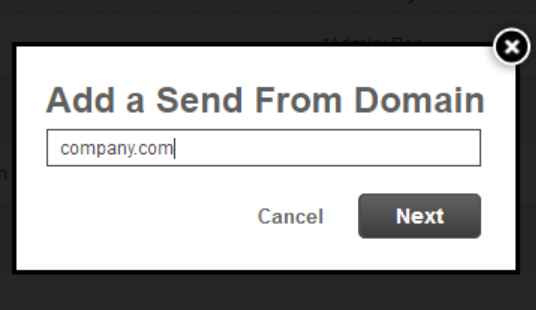

Get in touch with your IT
Step 1: To request changes to your DNS Record, you will need the help of an IT person.
Not sure who to contact? Here are a few tips on figuring it out:
- Who sets up new email addresses at your company?
- Who do you get in touch with when you have computer problems?
- If you work at a very small company with no dedicated IT, you may need to ask a technical freelancer or consultant that you have on retainer.
If your IT person is unclear on what they need to do, here is a more technical support article that they can reference: Prevent Emails from Going to Spam
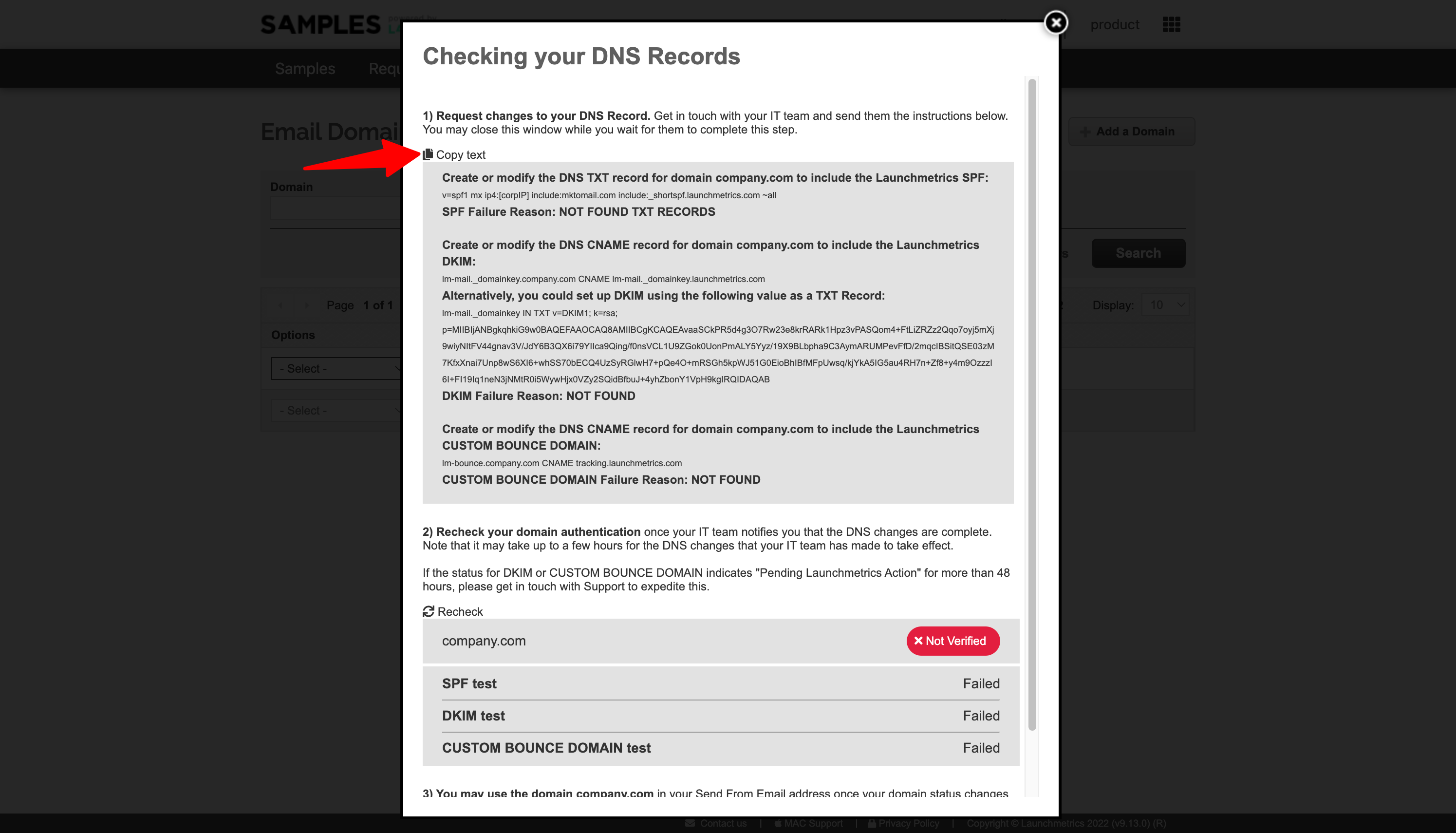
Step 2: Once your IT person finishes the configuration, you can return to the email domain manager, upon initial load of this page you’ll see instantly if the domain is verified.
If it says Verified, you can go ahead and use that domain in your SEND FROM email address. 
If it’s still Not Verified, wait a few hours and check again. Sometimes it takes a few hours for the DNS changes to take effect. If it still says NOT VERIFIED, open the options dropdown on the left side and click See Instructions
You’ll see which of the two (DKIM or CUSTOM BOUNCE DOMAIN) failed verification, or both. If either of them say “Failed”, copy the text again (as it might include helpful error messages) and send to your IT.
If it says “Pending Launchmetrics Action” next to DKIM or CUSTOM BOUNCE DOMAIN, this means that there is a change that the Launchmetrics engineers must make to complete the process. At this point, they have already been notified of the task but it may take 1-2 business days to complete.

Can I send email without verification?
Yes, it is not recommended but possible. If your domain is still not verified, you can send your mailing. A warning message will appear, you will have to write SPAM in the text field to validate your action. This alert message will only appear once per user.
I am receiving a failed message when running the "Custom Bounce Domain" and "DMARC test"
Please check if you are using "Namecheap" as DNS configurator. This interface does not make some details clear and thus it will not work correctly. If you follow the instructions we provide about Email Domain Whitelabeling to the letter.
⚠️ Common mistakes that trigger errors with Namecheap’s DNS panel
Entering the full domain (
lm-bounce.XXX.com) instead of justlm-bounce.Adding a trailing dot (
tracking.launchmetrics.com.) → most registrars don’t want the dot.Using the wrong record type (
Ainstead ofCNAME).
If you do not have an I.T team, please navigate to our Contacts FAQ page where you can find instructions under "How do I verify my domain, I don't have an I.T team?"