
イベントの作成方法
新しいイベントを作成する

ページ右上の 「Create Event」 をクリックして、新しいイベントを作成します。
必須項目は 赤いアスタリスク(*) で表示されています。
各項目の説明
- Department owner:このイベントにアクセスできるユーザーが属する Department です。

-
Seating:イベントの座席スタイルを選択します。
Seated Event または No Seating is needed のいずれかを選択してください。
※ multi-day / multi-timeslot events では Seating はサポートされていません。


-
Start and end time:イベントの開始時間と終了時間を設定します。
デフォルトでは 24時間表記 で表示されます。

招待状および RSVP ページで 12時間表記 にしたい場合は、
Event planning セクションで 「Use 12 Hours Format」 をオンにしてください。

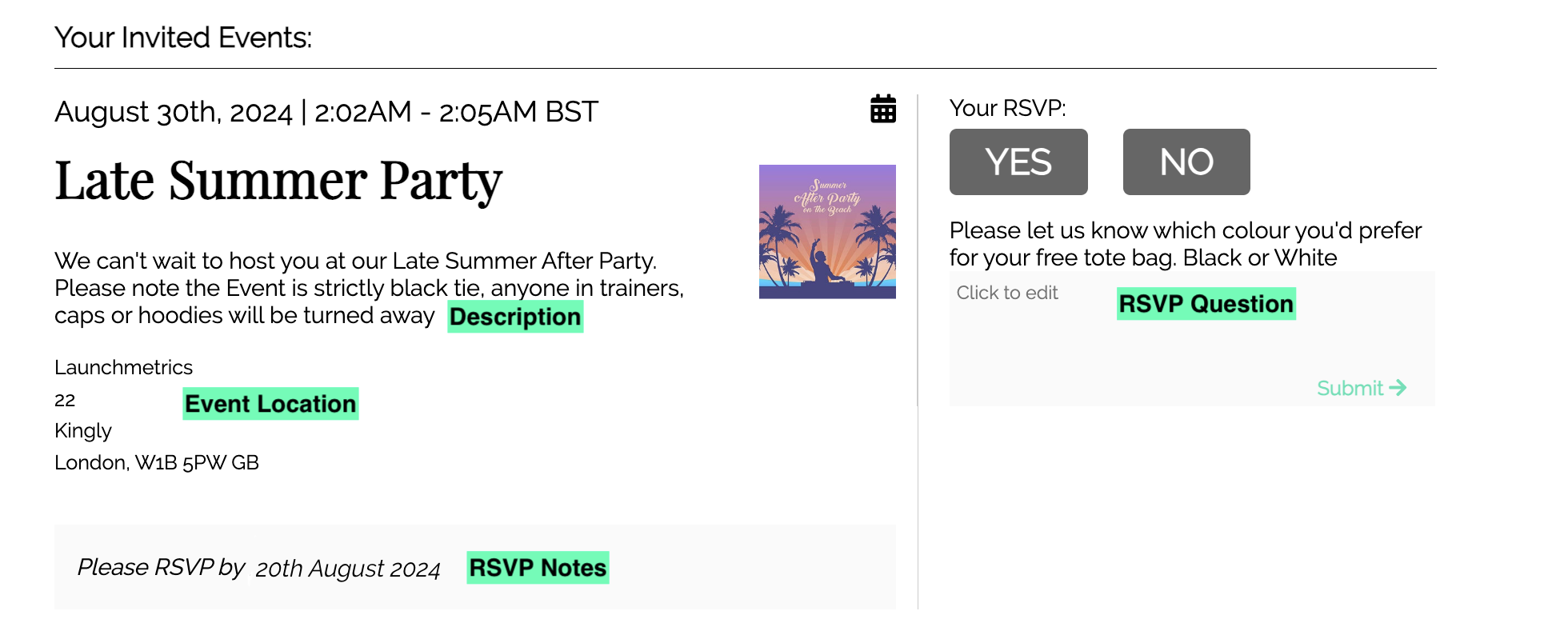
- Event Location:イベント会場の住所を入力し始めると、候補がドロップダウンで表示されます。選択すると、関連情報が自動で表示され、後から編集することも可能です。

-
Event Description:イベントの説明を入力する項目です。
ここに入力した内容は RSVP ページ に表示され、Invitees が確認できます。
-
Event Type:開催するイベントの種類を設定します。
この情報は 内部管理用のみで、外部には表示されません。
- Event Email:すべての event RSVP emails が送信される際のデフォルトの送信元メールアドレスです。デフォルトとして設定されますが、Events Mailings の設定時に変更することも可能です。
Basic details:基本情報を入力後、「Add more details」 を選択して詳細設定を行うことができます。または、一度イベントを作成してから後で編集することも可能です。

-
Event Season:イベントに該当する Season を設定します。
- Guests:Guest limit で設定した人数が、Invitees が同伴できる +1 のデフォルト人数 になります。この数を 0 に設定した場合でも、Invitees Manager から個別にゲスト人数を割り当てることができます。

-
RSVP Phone:RSVP を管理する担当者の電話番号を入力します。
この番号は RSVP ページ に表示されます。
-
RSVP Notes:Invitees に伝えたい注意事項などを入力する項目です。
この内容は RSVP ページ に表示されます。
- Event Hashtag:内部管理用のハッシュタグです。
- Enable QR Code Check In:このオプションを有効にすると、Events Mailing のメールテンプレート内にInvitee 受付チェックイン用の QR Code を含めることができます。

- QR Code customization:QR Code Check In を有効にすると、Branding セクションからQR Code のカスタマイズが可能になります。

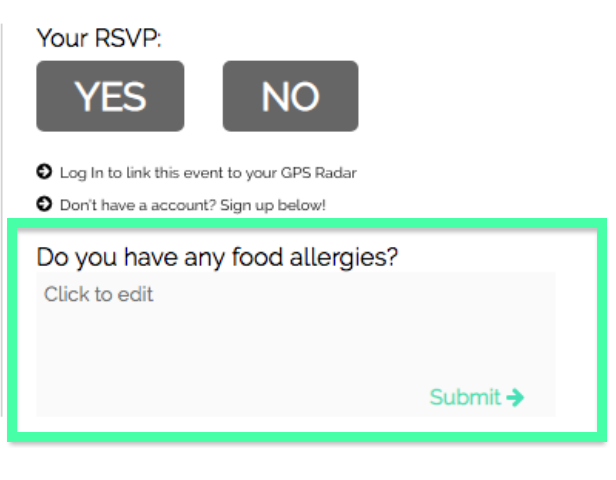
- Ask Invitee a question upon RSVP:このオプションを有効にすると、RSVP 時に Invitees に質問を表示できます。
例)食材アレルギーはございますか? / イベント当日の撮影は可能ですか? 等

-
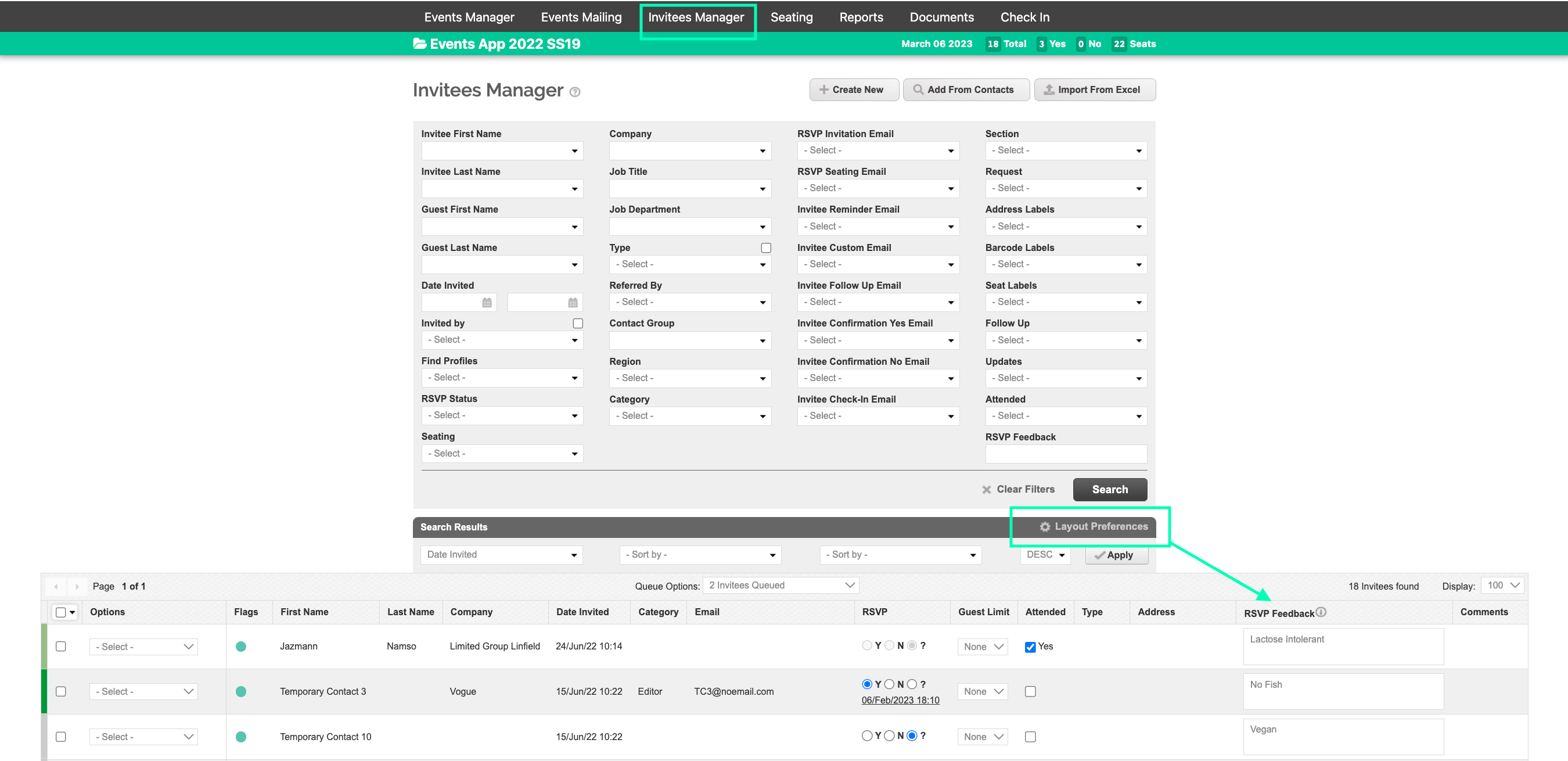
RSVP Feedback の確認:回答内容は、Invitees Manager 内のLayout Preference:RSVP Feedback を使用して確認できます。
-
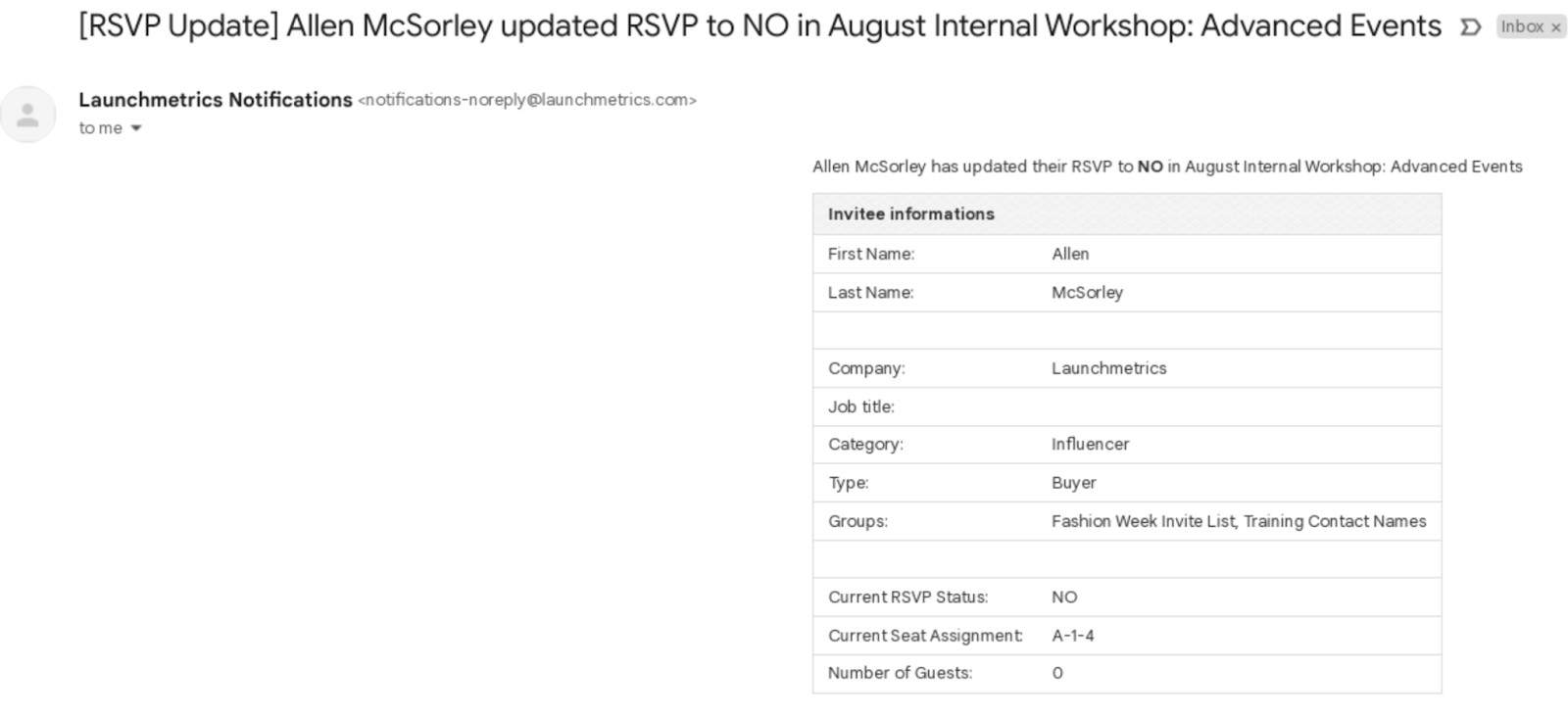
Notify with RSVP changes after:特に Seated Events において非常に便利な設定です。イベント日の 1〜2日前 を目安に日付を設定すると、Invitee が RSVP を変更した際に、Event Email フィールドに設定されたメールアドレス宛に通知メールが送信されます。

RSVP Landing Page
 RSVP Landing Page