
🗓 released November 15th
✨ New feature: Samples filters in showrooms
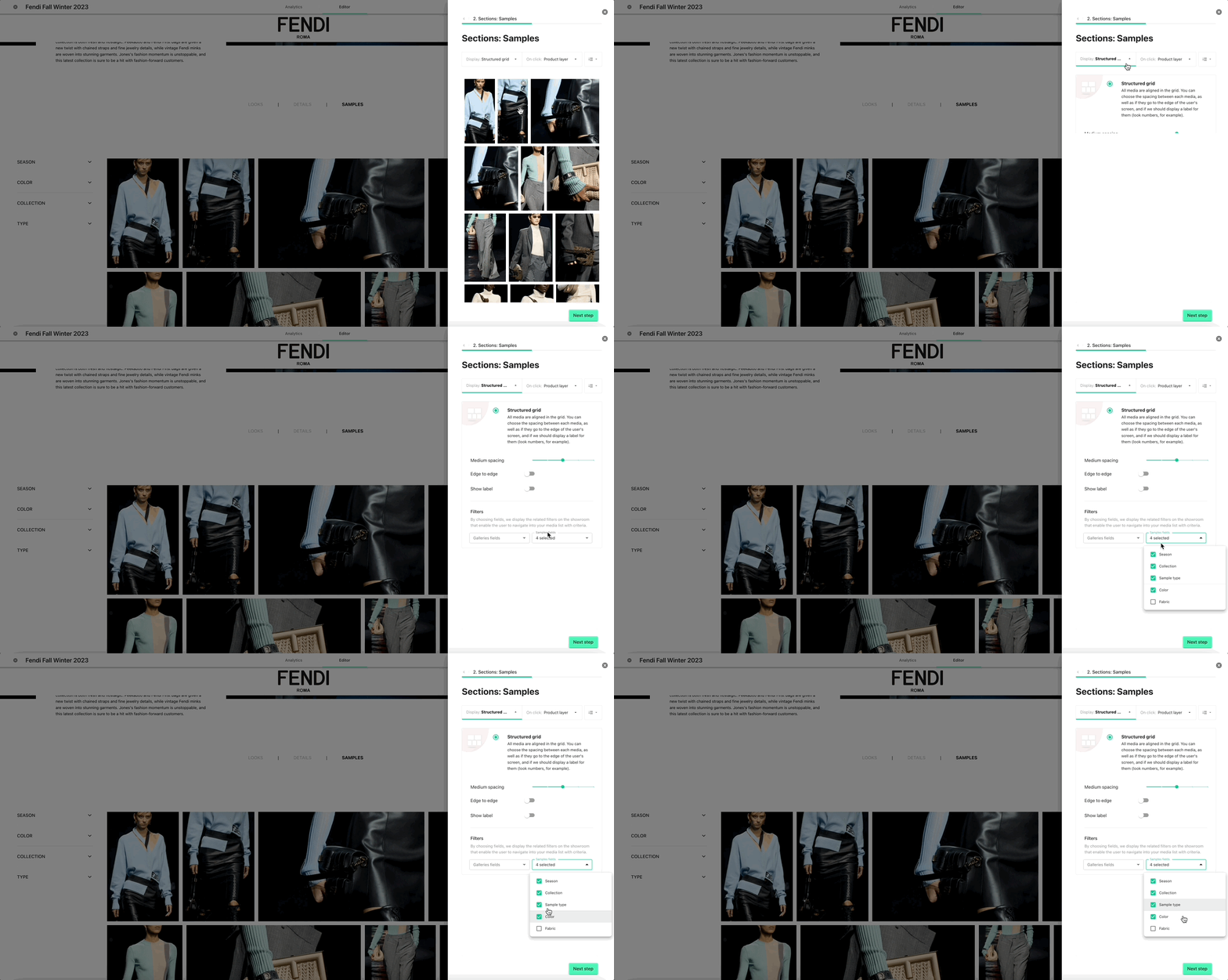
It is now possible to add samples related filters into the Galleries showrooms. If you have imported some samples into your library and made them part of the showroom, you can now also enable filtering them using the tags coming directly from Samples. A list of all the Samples properties is now available in the Filters section under the “Display” tab.
This feature will improve the navigation in showrooms with samples' specific tags and moreover it will not be necessary to tag in Galleries when clean tags can be used coming from Samples.
More about showroom creation and editing
Read more about how to create/edit a showroom in 🗒️ this article. It explains all the steps needed to create a beautiful showroom, including the management of the filters sections.
🗓 released October 19th
✨ New feature: Spotlight Voice Panel in Galleries
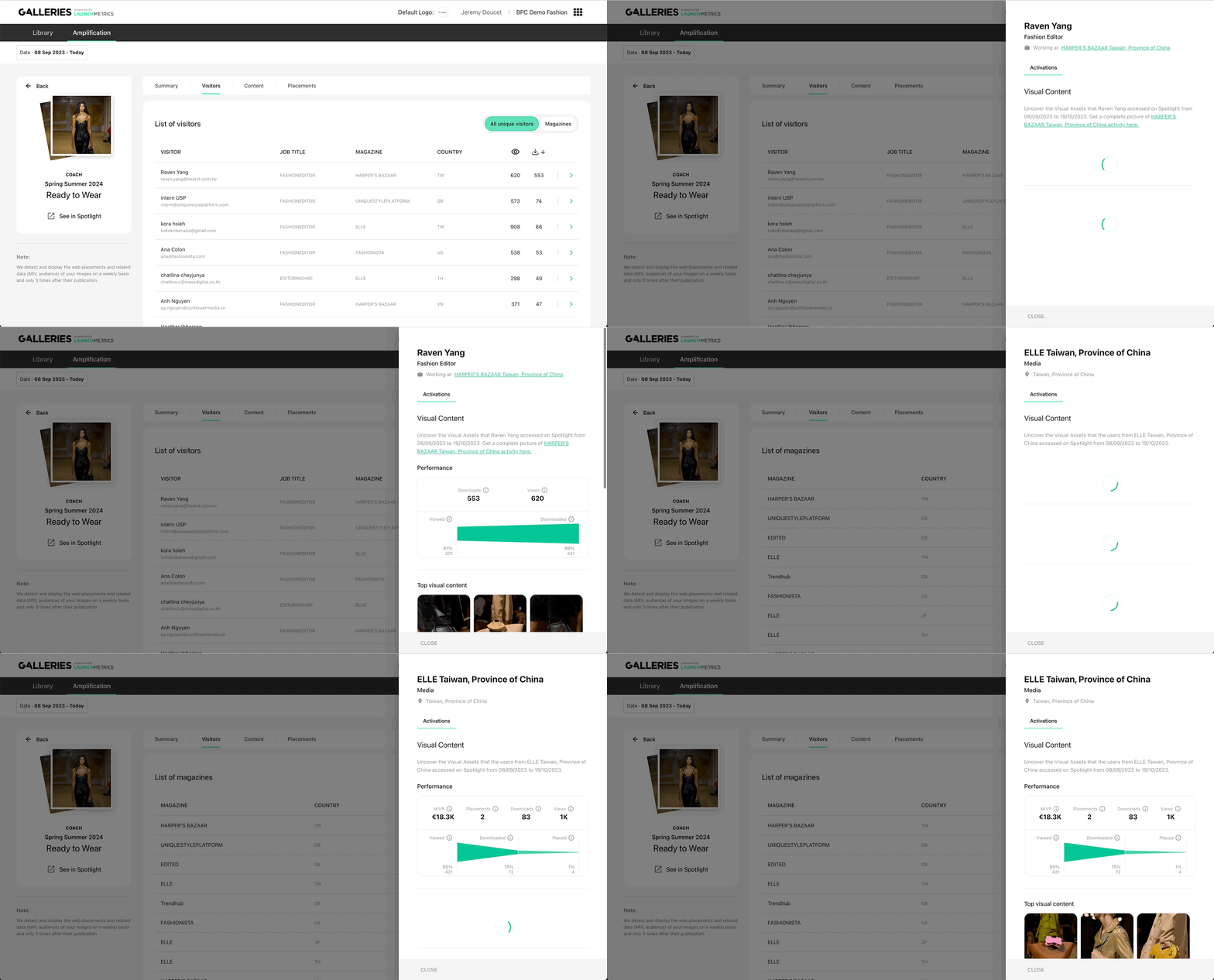
It is now possible to learn (much) more about passive and at-scale activation achieved through Spotlight thanks to the Voice panel!
From the list of visitors, you can now access all the necessary information about the editors who have interacted with your content (what have they viewed, and downloaded?) before contacting them. Even better, you can see aggregated data for a specific magazine, from the images viewed to the placement(s) and MIV generated by Spotlight!
Know more about Spotlight in Galleries here
🗓 released April 25th 2023
✅ New look for at-scale amplified collections in Spotlight
What was released
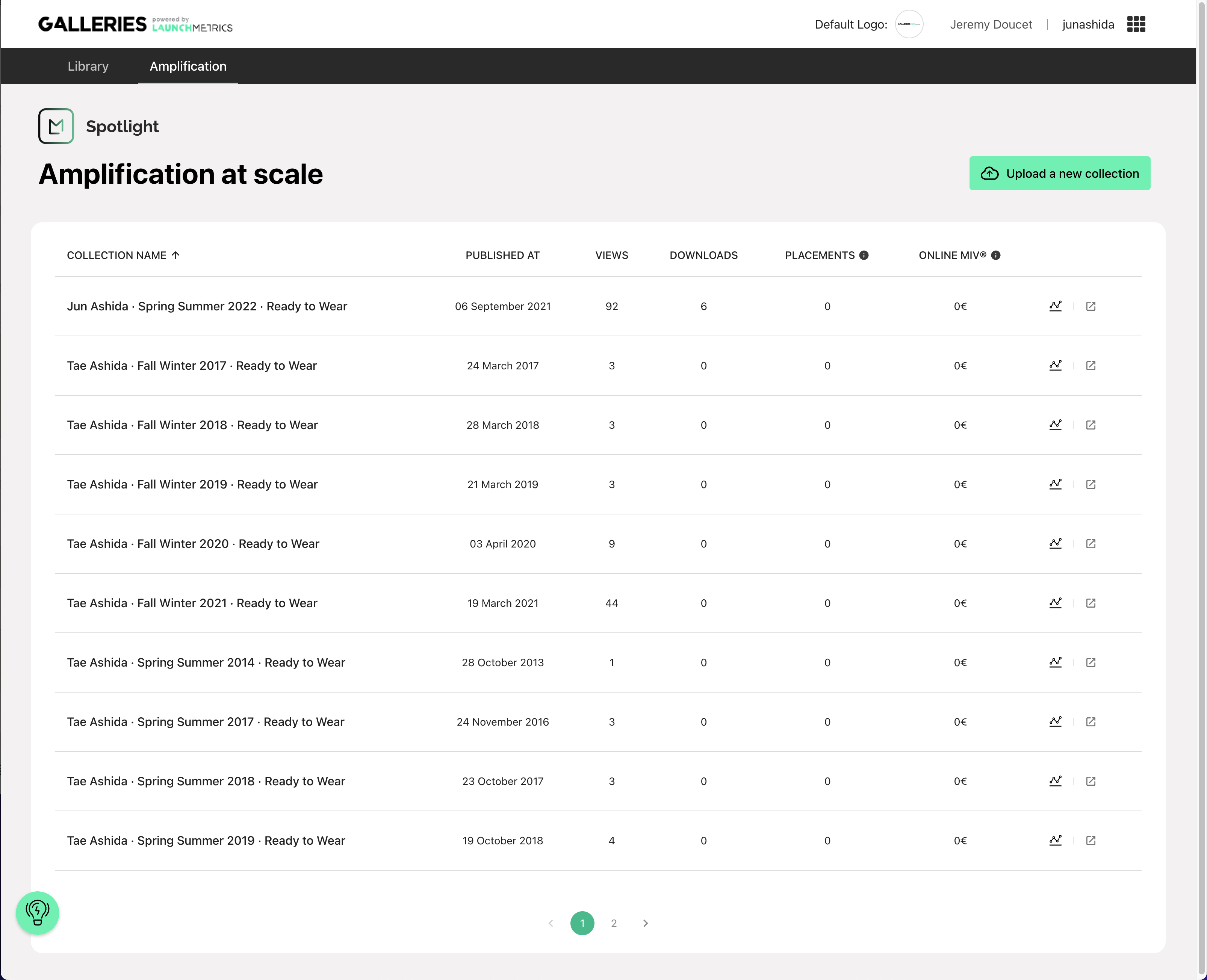
We have added a screen that did not exist before listing the collections present on Launchmetrics Spotlight that allows to
- preview at a glance the big data compiled by collection (date of upload, number of views, downloads, placement and MIV)
- access the complete statistics on this collection
- access the collection on Spotlight directly
Why we did it
By making this screen, we
- harmonize the experience between "targeted" (=Showrooms) and "at-scale" (= Spotlight) amplification
- Prepare the new experience for tracking data on Spotlight in Galleries
How it will help users
This new screen will allow users to
- identify the latest collections more quickly
- see the performance at a glance
- access images directly and easily (with one click) on Spotlight
🗓 released July 20th, 2022
✅ Reorder the library alphabetically or chronologically
In order to allow you to find their content more efficiently in their library and thus enhance the overall experience of the product, we now allow you to sort the order in which it is displayed.
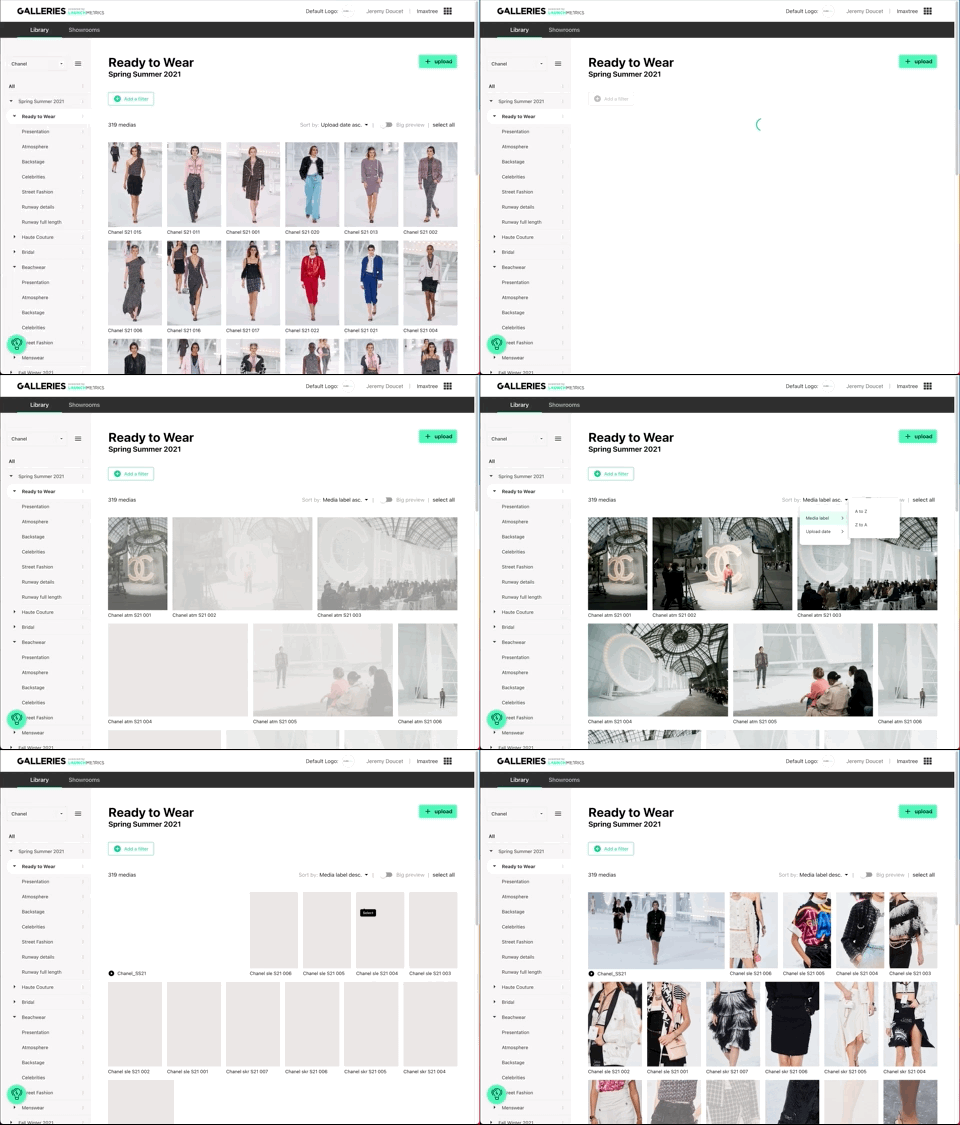
To do this, simply click on the sorting option at the top right of the library.
This feature works wherever you are in the library. It is possible to sort all the images in an album or in the whole library. Whether they come from samples or not.
There are two possible ways of sorting:
According to alphabetical order: from A to Z or from Z to A
Chronological order: from the most recent to the oldest or the opposite.
Learn more about Filtering and Sorting medias in Galleries→
🗓 released May 10th
✅ Faster way to tag individual images
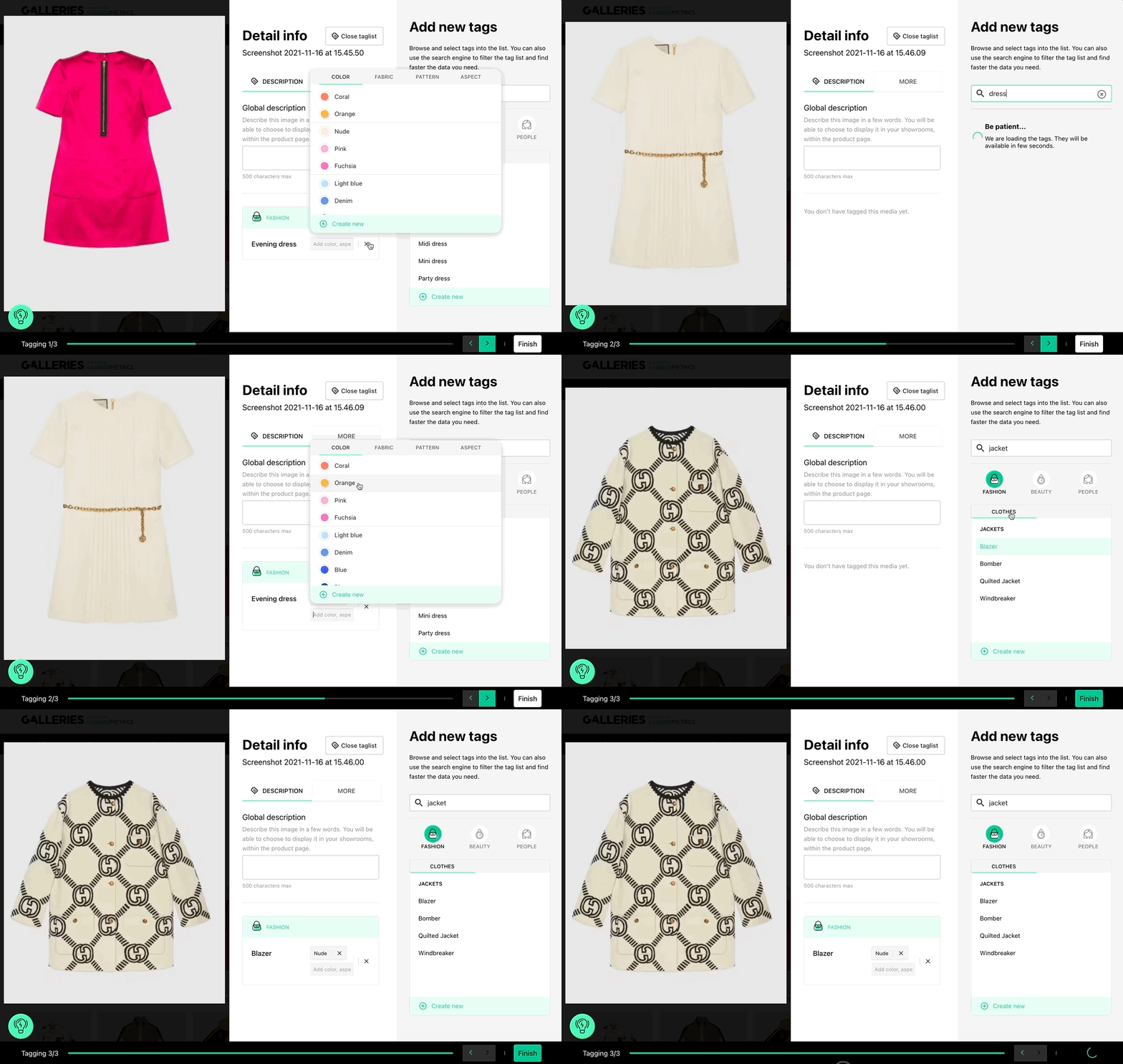
In order to speed up the process of tagging, you can also decide to tag all images one by one without closing the tagging interface. This method is particularly efficient when you have a lot of different images to tag individually in a row.
After selecting your images within your Library, you'll now have the possibility to select "Tag one by one". By doing so the tagging interface opens with a progress tracker that covers all selected images. You'll start by tagging your first image selected. Once fully tagged you can move on to the next one by just clicking on the right arrows at the bottom. You won't have any loading time and can start tagging the next one quicker.
At any moment you can decide to close the interface. If you have made any modifications you'll be asked if you want to keep them or discard them all.
Once done, you can click on "Finish" and all tags will be applied to your selected images.
Learn more about managing tags in Galleries ➝